
⚠️ Important:
Refer to your organisation’s local process and approved banner templates before creating an announcement.
This article explains how to perform the actions in SystemView. However, your organisation may have specific policies regarding:
- When banners should be used
- Approved wording or templates
- Scheduling and approval processes
In this article:
- Where to find announcement banners
- Creating a new announcement banner
- Banner types
- Scheduling and targeting
- Finalising and managing banners
- FAQs
Where to find announcement banners
Announcement banners are managed through the Applications menu.
To access:
- Open SystemView
- Click the down arrow on the user menu in the top-right corner

- Select Applications
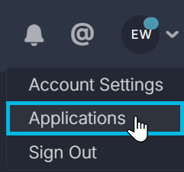
- Select Announcements from the left navigation panel or the applications menu.
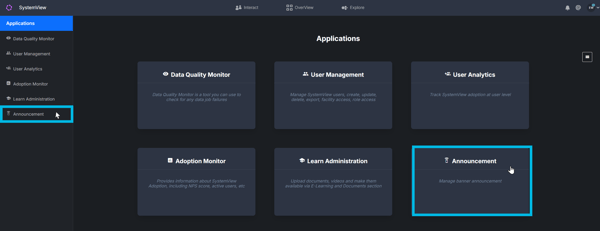
This opens the announcement register, where you can view:
- Active banners
- Scheduled banners
- Historical (inactive) banners
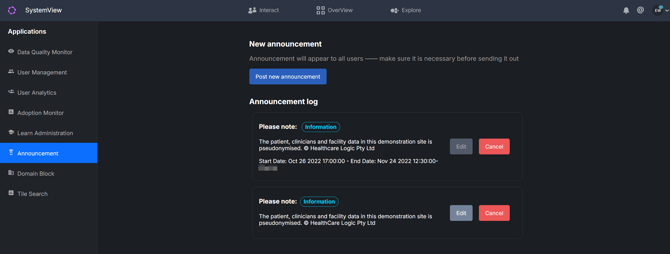
This screen lists all announcements and provides the option to post a new one.
Creating a new announcement banner
To create a new banner:
- Click Post new announcement at the top of the announcement register.

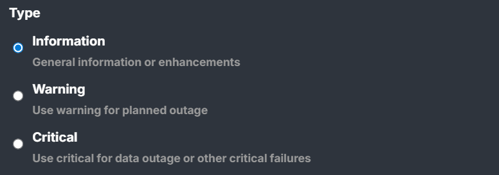
- Select a banner type (Information, Warning or Critical).
- Enter a Title

- Enter a Description

- (Optional) Select one or more facilities
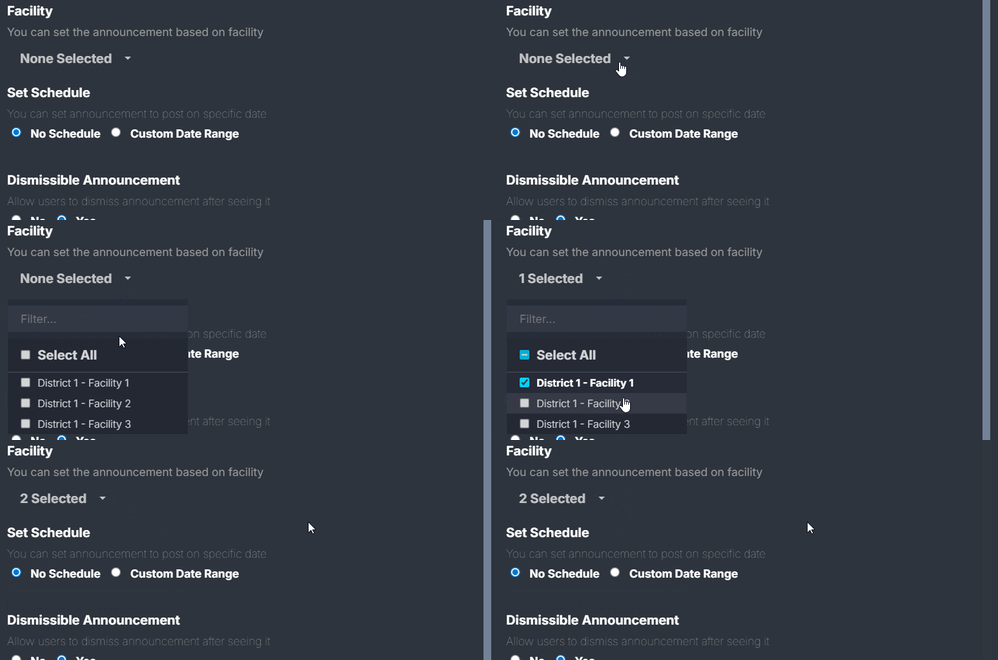
Select facilities if you want to target users from a specific site or group. Leave this blank to display the banner to all users. - (Optional) Configure a schedule
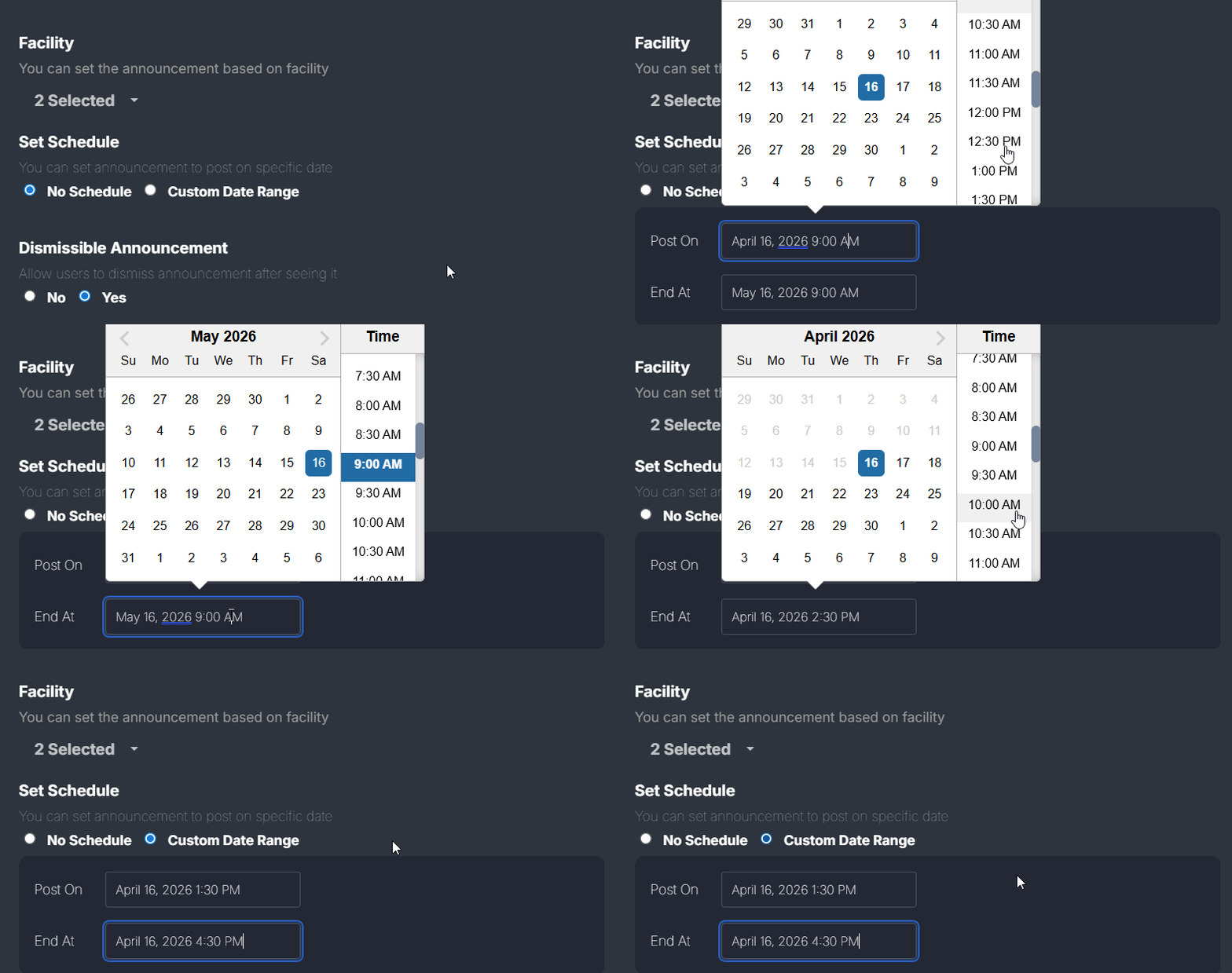
Set a start and end time if the banner relates to a planned event or time-bound communication.
- Once all the details are filled in, click Post announcement to finish.

Once posted, the banner will appear in the announcement log list.
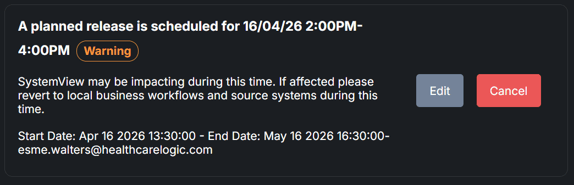
Newer announcements appear at the bottom of the list (oldest to newest order).
Banner types
SystemView provides three banner types:

- ✳️ Information (green)
Used for general updates or enhancements (for example, new components or features) - ⚠️ Warning (orange)
Used for planned changes or issues that may impact users (for example, deployments, data reloads, or outages) - ❗Critical (red)
Used for major outages or failures that significantly affect access or functionality
These options are shown in the announcement setup screen.
Scheduling and targeting
Targeting users (facility selection)
- Select one or more facilities to target specific users
- Leave blank to display the banner to all users
Scheduling options
You can control when the banner appears:
- No schedule
Displays immediately with no end time - Custom date range
Schedule a start and end time in advance
Scheduling can be used for planned events or time-bound communications.
Dismissible banners
You can choose whether users can dismiss the banner after viewing it. This will allow users to close the banner via an X button.
Finalising and managing banners
Posting the banner
Click Post announcement to publish the banner.
Once posted:
- It becomes visible based on your scheduling settings
- It appears in the announcement register
Editing banners
- Scheduled banners can be edited before they begin
- If a banner is already active or within its scheduled window, it must be:
FAQs
Q. Why can’t I see the Announcements option?
A. You may not have the required access level. Check with your SystemView administrator.
Q. Why can’t I edit an active banner?
A. Scheduled banners that are already in progress cannot be edited. You will need to remove and recreate them.