---
title: How to add and manage users in SystemView
description: Learn how to add, modify, or reactivate user accounts in SystemView using the User Management application. This guide explains how Local Administrators can create users, assign facility access, and troubleshoot common user access issues.
---
[Skip to content](https://academy.healthcarelogic.com/knowledge/how-to-add-and-manage-users-in-systemview#main-content)
[Contact Us](https://academy.healthcarelogic.com/knowledge/kb-tickets/new)
[](https://academy.healthcarelogic.com/knowledge)
- [Getting Started](https://academy.healthcarelogic.com/getting-started-with-systemview)
- [Domain Overviews](https://academy.healthcarelogic.com/learning-hub/domain-overviews)
- [On-demand Learning](https://academy.healthcarelogic.com/learning-hub/webinars/australia/on-demand-webinars)
- [Webinars](https://academy.healthcarelogic.com/learning-hub/webinars)
Open main navigation
Close main navigation
- [Getting Started](https://academy.healthcarelogic.com/getting-started-with-systemview)
- [Domain Overviews](https://academy.healthcarelogic.com/learning-hub/domain-overviews)
- [On-demand Learning](https://academy.healthcarelogic.com/learning-hub/webinars/australia/on-demand-webinars)
- [Webinars](https://academy.healthcarelogic.com/learning-hub/webinars)
- [Contact Us](https://academy.healthcarelogic.com/knowledge/kb-tickets/new)
- [Contact Us](https://info.healthcarelogic.com/contact-us)
[Contact Us](https://info.healthcarelogic.com/contact-us)
Search the Knowledge Base
- There are no suggestions because the search field is empty.
1. [SystemView Knowledge Base](https://academy.healthcarelogic.com/knowledge)
2. [System Administration](https://academy.healthcarelogic.com/knowledge/system-administration)
March 16, 2026
# How to add and manage users in SystemView
SystemView Local Administrators can create new user accounts, modify access settings, and reactivate inactive users through the **User Management** application.
This guide explains **how to perform these actions within SystemView**.
⚠️ **Important**
Before creating or modifying user accounts, please ensure you follow your organisation’s **local governance and approval processes for SystemView access**.
This guide explains **how to perform the actions in SystemView**, but your organisation may have specific policies about **who can receive access and what level of access is appropriate.**
**In this article:**
- [How to add a new user](https://academy.healthcarelogic.com/knowledge/how-to-add-and-manage-users-in-systemview#add-new-user)
- [How to modify an existing user's access](https://academy.healthcarelogic.com/knowledge/how-to-add-and-manage-users-in-systemview#modify-user-access)
- [How to reactivate an inactive user](https://academy.healthcarelogic.com/knowledge/how-to-add-and-manage-users-in-systemview#reactivate-user)
- [Troubleshooting](https://academy.healthcarelogic.com/knowledge/how-to-add-and-manage-users-in-systemview#troubleshooting)
---
### **How to add a new user**
#### **1. Open user management**
1. Click the **down arrow** in the **top-right corner** of SystemView.

2. Select **Applications** from the dropdown menu.
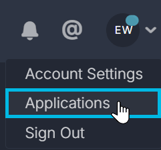
3. Select **User Management** from the left navigation panel or the applications menu.
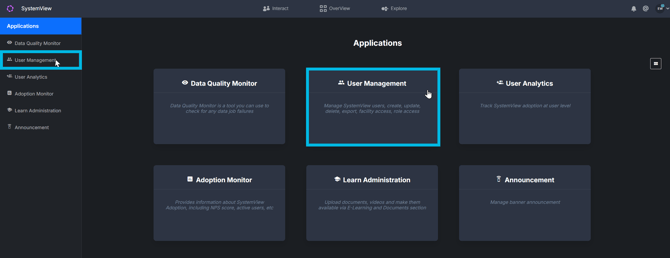
You will now see the **User List**, which displays all Active and Inactive users within your organisation’s SystemView environment.
#### **2. Add a new user**
###### **Step 1: Start creating the user**
1. In the **User List**, select **+ Add a User** in the **top-right corner**.
2. The **Create New User** form will open.
###### **Step 2: Complete the Create New User form**
Fill in the required fields.
- **User Name:**
Type the user’s **Work / Health ID** in the **User Name** field.
Select the matching result from the dropdown list.
Selecting a result will automatically populate:
- - Email address
- First name
- Last name
- Phone number (if previously provided)
💡 **Tip:** If the user does not appear in the search results, they may already have access.
Before creating a new account, search their **ID or name in the User List search bar** to confirm they do not already exist.
- **Status:** Leave the status set to **Active**.
- **User Group:** Select the **user group that best represents the person’s role** within the organisation.
- **Team – Position:** Enter the user’s **job title or position**.
- **Jurisdiction View User Group:** Select the option that determines whether the user will have access to **JurisdictionView** within SystemView.
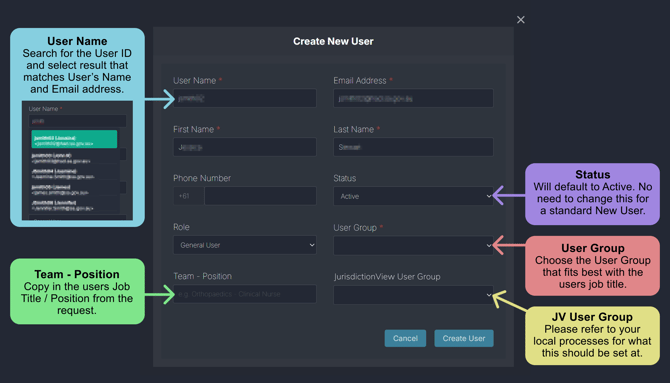
###### **Step 3: Continue to Access Settings**
Select **Create User** in the bottom-right corner of the form.
This will open the **Access Settings** panel.
#### **3. Configure facility access**
###### **Step 1: Select facility access**
1. 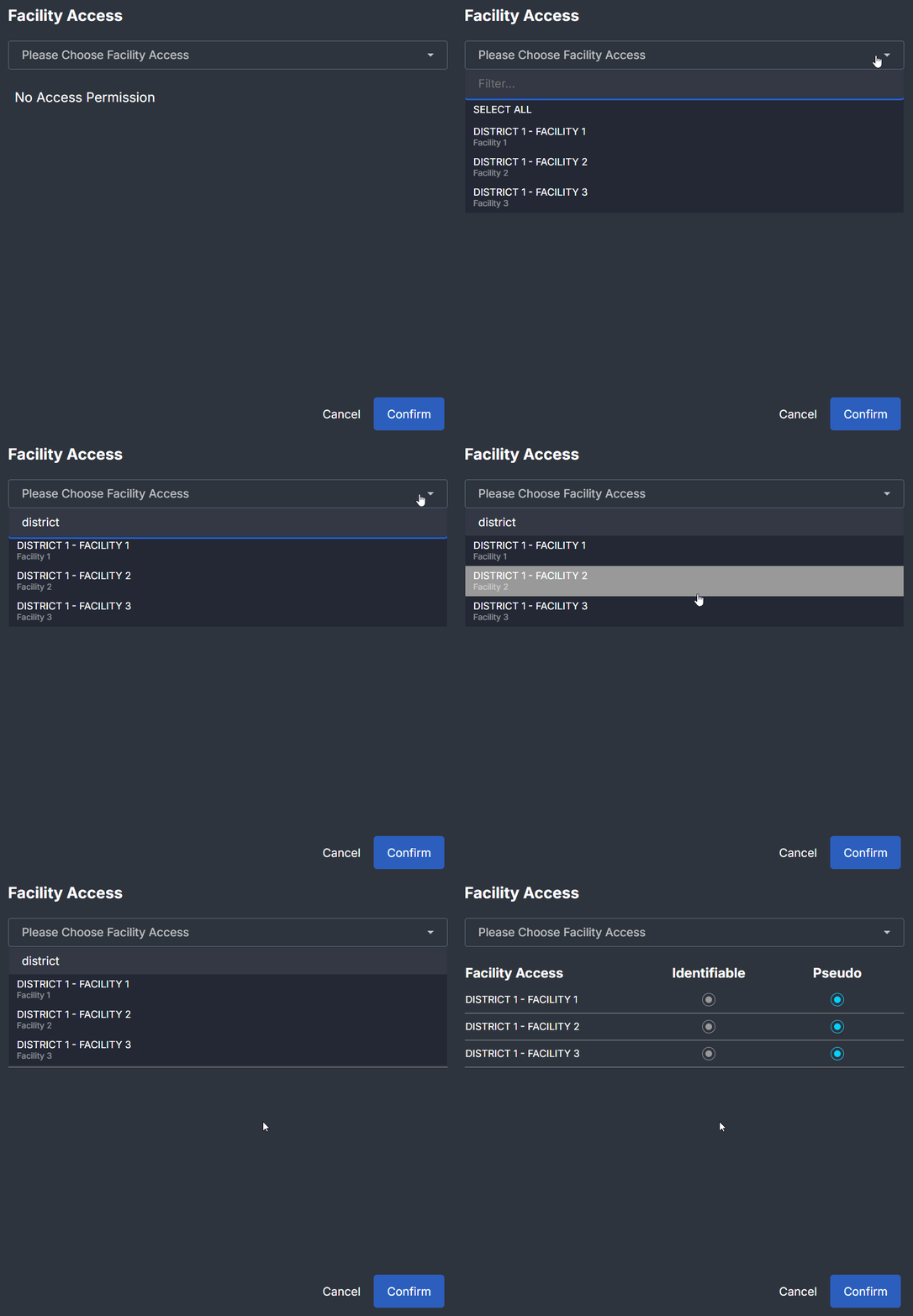Click the dropdown under **Facility Access**.
2. Select the facility from the drop-down menu or type the **district code or facility name** in the search bar to filter the facility's down.
Depending on the user’s needs, you can select:
- **All facilities within a district**, or
- **Individual facilities**.
###### **Step 2: Confirm selected facilities**
Click outside the dropdown panel to close it.
The selected facilities will appear in the **Facility Access table**.
Check that **all requested facilities are listed**.
###### **Step 3: Set the data access level**
You must choose whether the user can access:
- **Identifiable Data:** Patient-level information that may contain identifiable details.
- **Pseudonymised Data:** Data where identifying patient details have been removed or replaced.
Most users will require **identifiable data access**, but this should follow your organisation’s access policies.
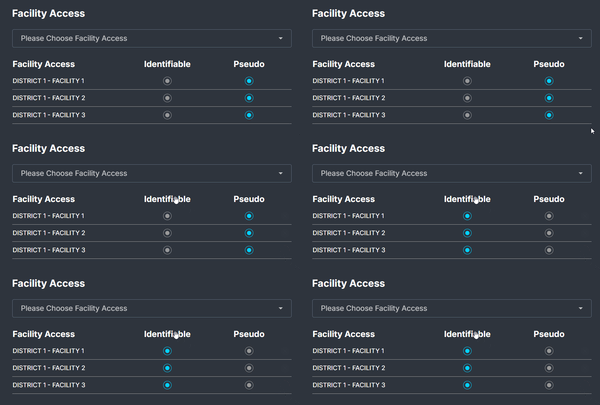To grant identifiable access to all facilities:
1. Click the **Identifiable** column header.
2. All radio buttons in that column will turn **blue**.
###### **Step 4: Confirm the user setup**
Click **Confirm** in the bottom-right corner of the panel.
⚠️ **Note:**
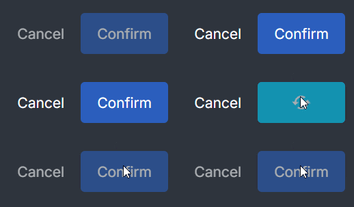There is no confirmation message after saving.
The only indication that the changes have been saved is:
- A **brief green tick** appearing over the Confirm button.
- The button changing from **bright to dull**.
Click the **X** in the top-right corner of the panel to close it.
#### **4. Confirm the user was added**
1. After closing the access panel, you will return to the **User List**.
2. Use the **search bar** to search for the user’s **ID or name**.
3. Confirm their record appears in the results.
---
### **How to modify an existing user**
User profiles and access settings can be updated at any time.
#### **1. Find the user**
1. Navigate to **User Management**.
2. Search for the user in the **User List**.
#### **2. Edit user profile details**
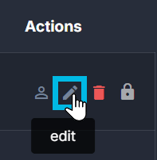Click the **pencil icon** under the **Actions** column.
You can edit:
- Account status
- User group
- Role
- Team / position
- Jurisdiction View user group
#### **3. Modify facility access**
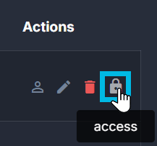Click the **lock icon** under the **Actions** column.
This allows you to update:
- Facility access
- Identifiable or pseudonymised data permissions
---
### **How to reactivate an inactive user**
If a user account has been made **inactive**, the user will no longer be able to log in. However, the account will remain in the **User List**.
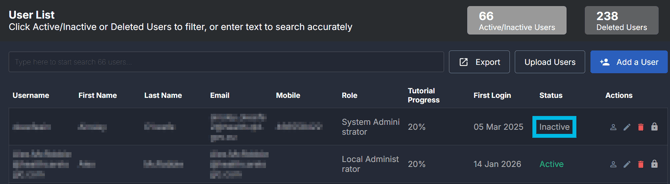
If the user needs access again, you can **reactivate their existing account**.
#### **1: Locate the user**
Search for the user in the **User List**.
#### **2: Reactivate the account**
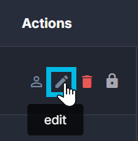
1. Click the **pencil icon** in the **Actions** column to open the user's profile.
2. In the **Status** field, change **Inactive** to **Active**.
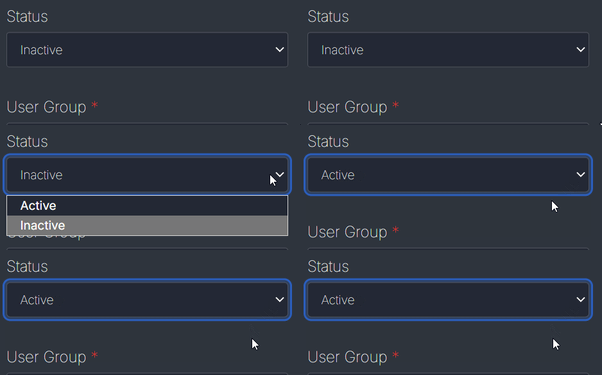
3. Select **Save Changes**.

#### **Step 3: Review their facility access**
After reactivating the user:
1. Click the **lock icon** in the **Actions** column.
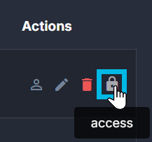
2. Confirm the user still has the correct **facility access**.
3. Add or remove facilities as required.
---
### **Troubleshooting**
#### **User doesn’t appear when searching their ID**
If a user does not appear in the **User Name dropdown** when creating a new user, they may already have an existing account.
###### **Step 1: Check the User List**
1. Close the **Create New User** form.
2. In **User Management**, search for the user’s **ID or name** in the **User List search bar**.
If the user appears but their **status is inactive**, follow the instructions in the **Reactivate an Inactive User** section above.
###### **Step 2: Check the Deleted Users List**
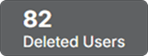If the user does **not appear in the User List**, their account may have been previously deleted.
1. Select **Deleted Users** in the **top-right corner** of the User List.
2. Search for the user’s **name or ID** in the Deleted Users list.
3. If the user appears, click the **clock icon** in the **Reinstate User** column.
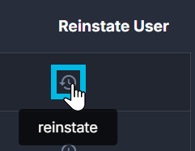
4. A confirmation popup will appear - select **Restore**.
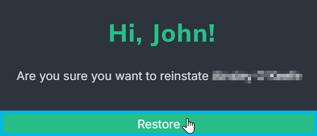
The user will then be **reinstated and returned to the active/inactive user list with an active account**.
- [Getting Started](https://academy.healthcarelogic.com/knowledge/getting-started#main-content)
- [Welcome & Introduction](https://academy.healthcarelogic.com/knowledge/getting-started#welcome-introduction)
- [Access & Account Setup](https://academy.healthcarelogic.com/knowledge/getting-started#access-account-setup)
- [Basic Navigation & Layout](https://academy.healthcarelogic.com/knowledge/getting-started#basic-navigation-layout)
- [FAQs & Troubleshooting](https://academy.healthcarelogic.com/knowledge/getting-started#faqs-troubleshooting)
- [Interact](https://academy.healthcarelogic.com/knowledge/interact#main-content)
- [Interact Basics](https://academy.healthcarelogic.com/knowledge/interact#interact-basics)
- [Customising SystemView](https://academy.healthcarelogic.com/knowledge/interact#customising-systemview)
- [Sharing & Duplicating Content](https://academy.healthcarelogic.com/knowledge/interact#sharing-duplicating-content)
- [Using Notifications & Improvement Tools](https://academy.healthcarelogic.com/knowledge/interact#using-notifications-improvement-tools)
- [Surgery](https://academy.healthcarelogic.com/knowledge/surgery#main-content)
- [Introduction & Terminology](https://academy.healthcarelogic.com/knowledge/surgery#introduction-terminology)
- [Waiting List Management](https://academy.healthcarelogic.com/knowledge/surgery#waiting-list-management)
- [Scheduling & Booking Management](https://academy.healthcarelogic.com/knowledge/surgery#scheduling-booking-management)
- [Performance & Activity Analysis](https://academy.healthcarelogic.com/knowledge/surgery#performance-activity-analysis)
- [Emergency Surgery](https://academy.healthcarelogic.com/knowledge/surgery#emergency-surgery)
- [FAQs & Troubleshooting](https://academy.healthcarelogic.com/knowledge/surgery#faqs-troubleshooting)
- [Outpatients](https://academy.healthcarelogic.com/knowledge/outpatients#main-content)
- [Introduction & Terminology](https://academy.healthcarelogic.com/knowledge/outpatients#introduction-terminology)
- [Waiting List Management](https://academy.healthcarelogic.com/knowledge/outpatients#waiting-list-management)
- [Referral Management](https://academy.healthcarelogic.com/knowledge/outpatients#referral-management)
- [Wait Times](https://academy.healthcarelogic.com/knowledge/outpatients#wait-times)
- [Demand & Capacity Planning](https://academy.healthcarelogic.com/knowledge/outpatients#demand-capacity-planning)
- [Bookings & Reviews](https://academy.healthcarelogic.com/knowledge/outpatients#bookings-reviews)
- [Clinic Effectiveness & Appointment Outcomes](https://academy.healthcarelogic.com/knowledge/outpatients#clinic-effectiveness-appointment-outcomes)
- [Virtual Learning & Tools](https://academy.healthcarelogic.com/knowledge/outpatients#virtual-learning-tools)
- [Beds](https://academy.healthcarelogic.com/knowledge/beds#main-content)
- [Introduction & Foundations](https://academy.healthcarelogic.com/knowledge/beds#introduction-foundations)
- [Inpatient Demand & Capacity](https://academy.healthcarelogic.com/knowledge/beds#inpatient-demand-capacity)
- [Complex Patients Management](https://academy.healthcarelogic.com/knowledge/beds#complex-patients-management)
- [Risk of Hospitalisation & Readmissions](https://academy.healthcarelogic.com/knowledge/beds#risk-of-hospitalisation-readmissions)
- [Length of Stay & Inpatient Flow](https://academy.healthcarelogic.com/knowledge/beds#length-of-stay-inpatient-flow)
- [Inpatient Occupancy Forecaster](https://academy.healthcarelogic.com/knowledge/beds#inpatient-occupancy-forecaster)
- [Emergency Department](https://academy.healthcarelogic.com/knowledge/emergency-department#main-content)
- [Introduction & Foundations](https://academy.healthcarelogic.com/knowledge/emergency-department#introduction-foundations)
- [Department Now](https://academy.healthcarelogic.com/knowledge/emergency-department#department-now)
- [Flow Monitor](https://academy.healthcarelogic.com/knowledge/emergency-department#flow-monitor)
- [Performance Trends & Analytics](https://academy.healthcarelogic.com/knowledge/emergency-department#performance-trends-analytics)
- [Virtual Learning & Tools](https://academy.healthcarelogic.com/knowledge/emergency-department#virtual-learning-tools)
- [FAQs & Troubleshooting](https://academy.healthcarelogic.com/knowledge/emergency-department#faqs-troubleshooting)
- [SystemView 2](https://academy.healthcarelogic.com/knowledge/systemview-2)
- [System Administration](https://academy.healthcarelogic.com/knowledge/system-administration)
- [Patient Cohorts](https://academy.healthcarelogic.com/knowledge/patient-cohorts#main-content)
- [Beds](https://academy.healthcarelogic.com/knowledge/patient-cohorts#beds)
- [Emergency Department](https://academy.healthcarelogic.com/knowledge/patient-cohorts#emergency-department)
- [Release Notes](https://academy.healthcarelogic.com/knowledge/release-notes)
[](https://healthcarelogic.com/)
[mailto:customersuccess@healthcarelogic.com](mailto:customersuccess@healthcarelogic.com)
© 2026 HealthCare Logic. All rights reserved
**Didn't find what you were looking for?**
[Raise a support ticket](https://academy.healthcarelogic.com/knowledge/kb-tickets/new) and our team will come back to you. For guided training try the [Learning Hub](https://academy.healthcarelogic.com/learning-hub), or catch up on a [past webinar](https://academy.healthcarelogic.com/learning-hub/webinars).