In this article
Access Learn Administration
To upload and manage Help & Support content, first navigate to the Learn Administration area.
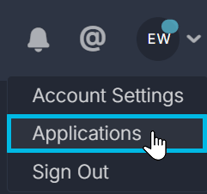
- Click the down arrow in the top-right corner of SystemView

- Select Applications from the dropdown menu
- Select Learn Administration from the left navigation panel or applications menu
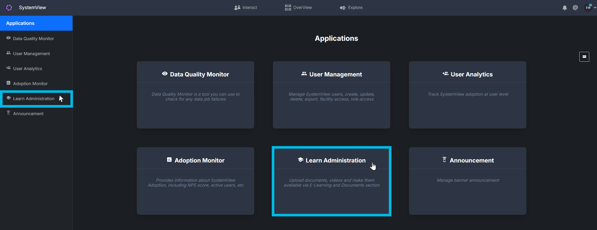
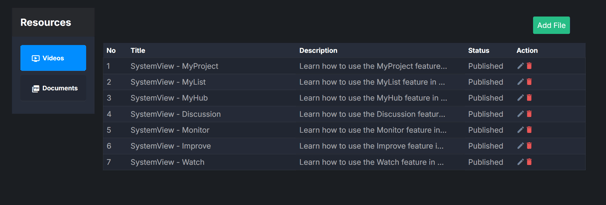
This opens the Learn Administration page, where documents and videos can be managed.
Upload a document
To add a new document to the Help & Support centre:
-
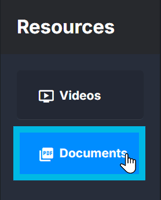
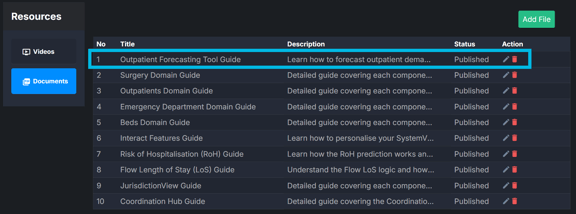
Select Documents from the resource menu on the left
-
Click Add File in the top right-hand corner

- Upload your file:
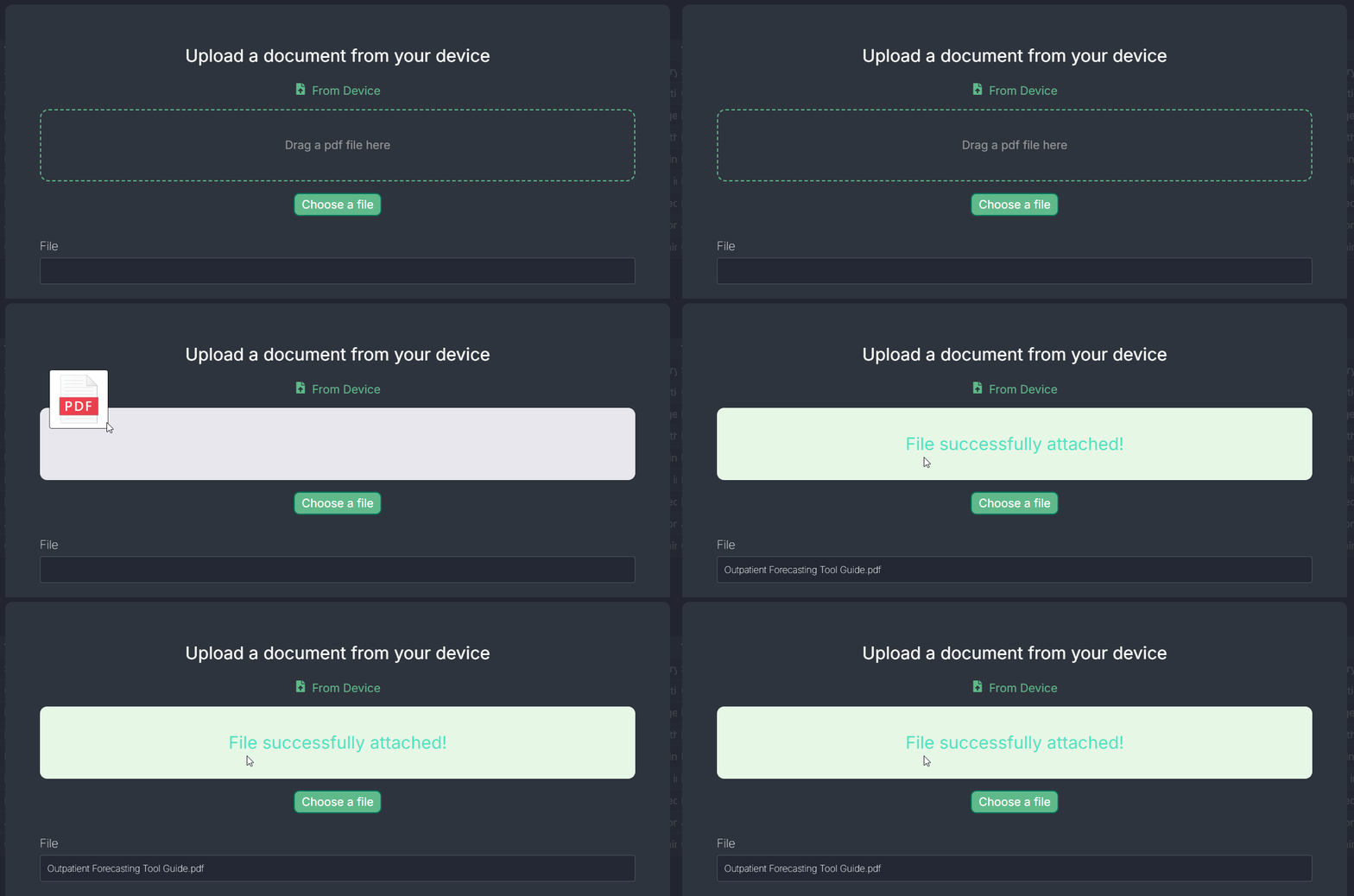
- Drag and drop the file into the upload box, or
- Select the file from your computer
- Enter document details:
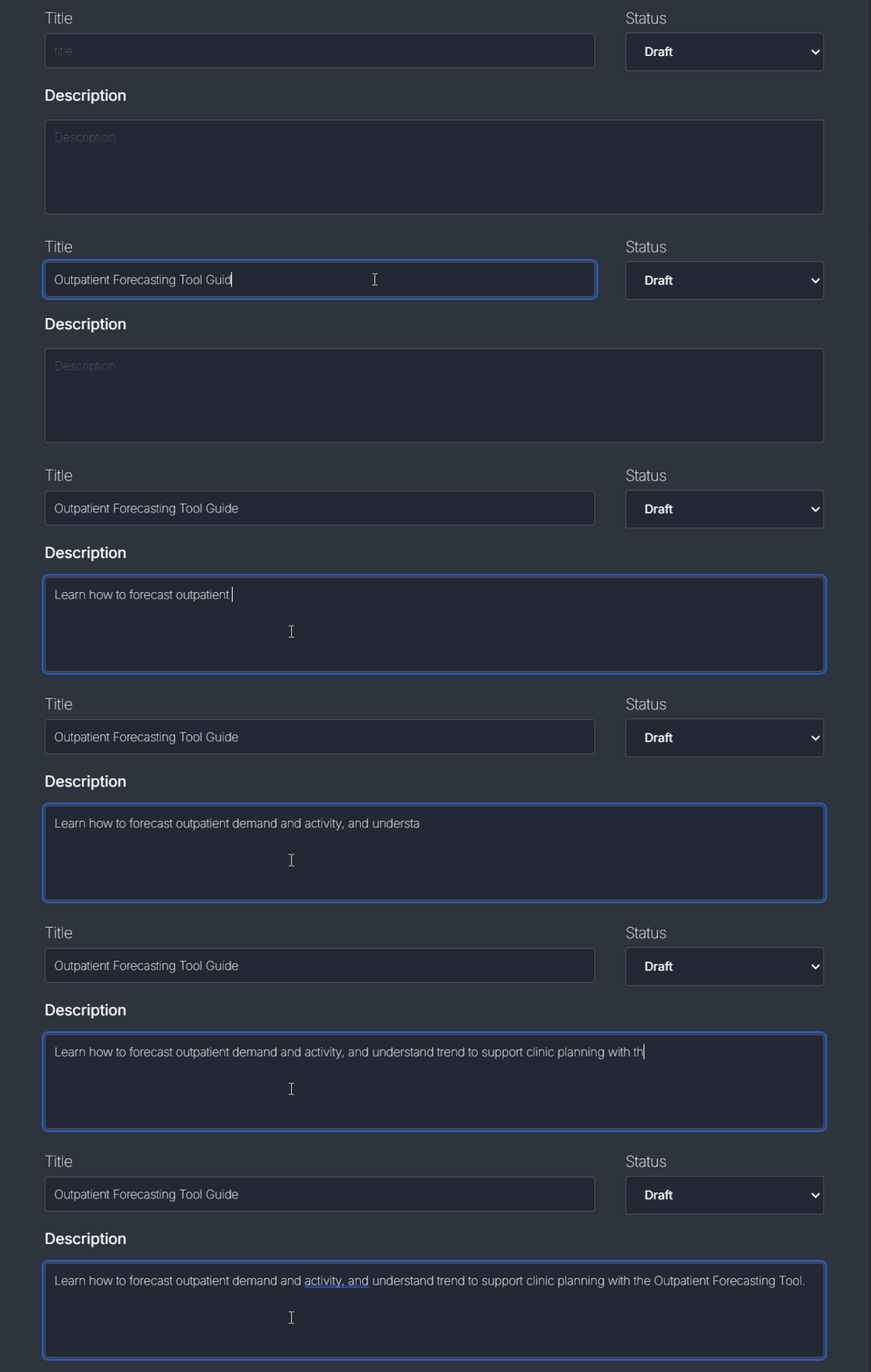
- Title: The name displayed to users
- Description: A short summary of the document content
- Set the document status:
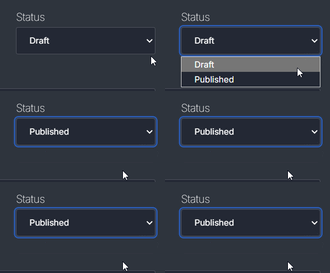
- Draft (default), or
- Published (visible to users)
- Click Upload.

Once uploaded, the document will appear in the documents list on the Learn Administration page. If published, it will also be available to users in the Help & Support centre.
ℹ️ Note: Only PDF files are supported.
Publish or save as draft
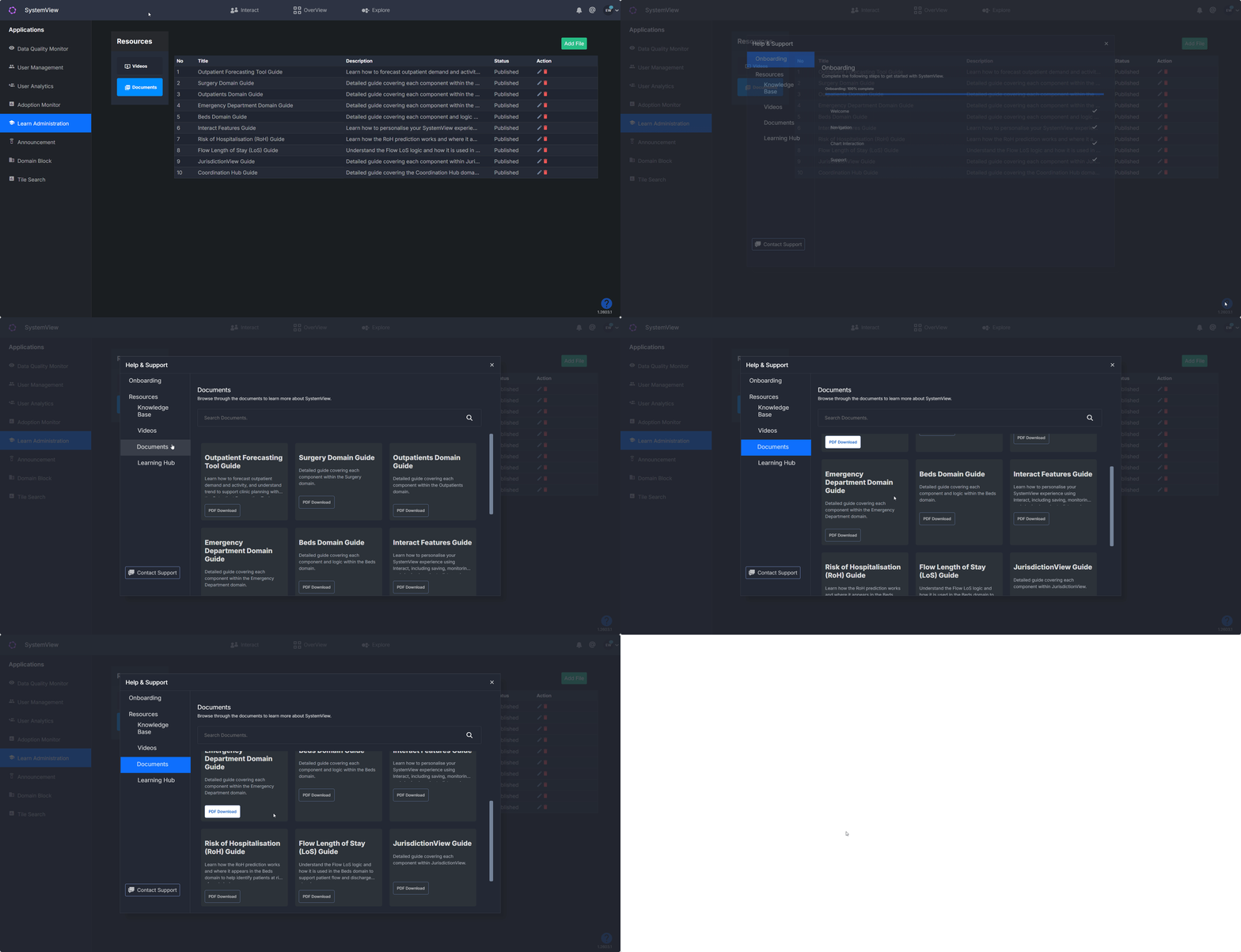
Documents can be managed as drafts before being made visible to users.
- If uploaded as Draft, the document is only visible in Learn Administration
- When ready, update the status to Published to make it available in the Help & Support centre
Once published, all users with access to Help & Support can view the document.
Manage existing documents
Reorder documents
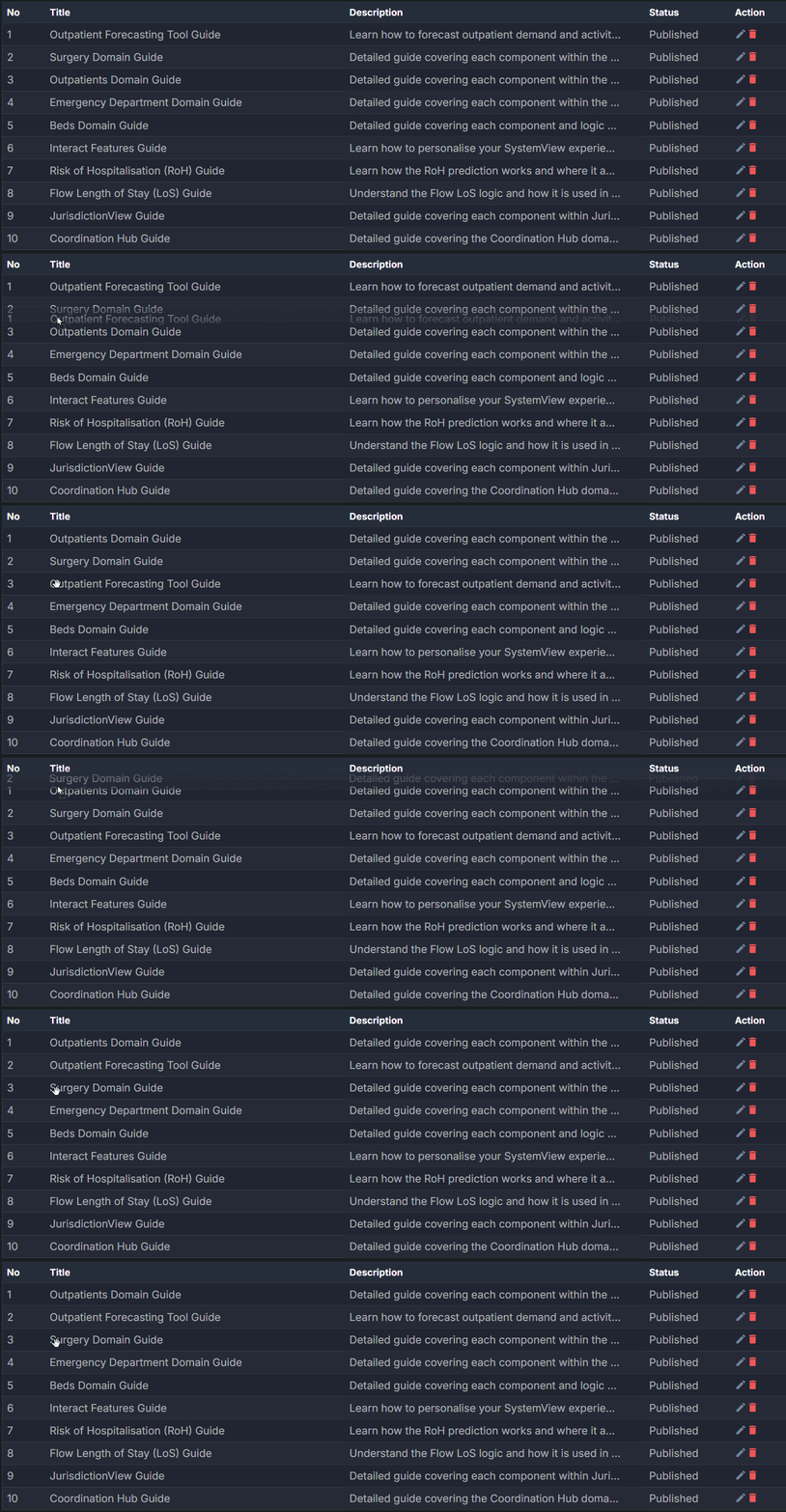
The order shown in Learn Administration determines how documents appear in the Help & Support centre.
Click and drag a document to change its position in the list
Edit a document
To update a document’s title, description, or status:
- Locate the document in the list
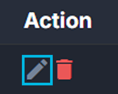
- Click the pen icon in the Actions column
- Make your changes and save
Delete a document
To remove a document:
- Locate the document in the list
- Click the red bin icon in the Actions column