---
title: How to create and use scenarios in the Outpatient Forecasting Tool
description: Learn how to create and apply scenarios in the Outpatient Forecasting Tool to explore how different strategies may impact future waiting list positions and long waits.
---
[Skip to content](https://academy.healthcarelogic.com/knowledge/outpatients/how-to-create-and-use-scenarios-in-the-outpatient-forecasting-tool#main-content)
[Contact Us](https://academy.healthcarelogic.com/knowledge/kb-tickets/new)
[](https://academy.healthcarelogic.com/knowledge)
- [Getting Started](https://academy.healthcarelogic.com/getting-started-with-systemview)
- [Domain Overviews](https://academy.healthcarelogic.com/learning-hub/domain-overviews)
- [On-demand Learning](https://academy.healthcarelogic.com/learning-hub/webinars/australia/on-demand-webinars)
- [Webinars](https://academy.healthcarelogic.com/learning-hub/webinars)
Open main navigation
Close main navigation
- [Getting Started](https://academy.healthcarelogic.com/getting-started-with-systemview)
- [Domain Overviews](https://academy.healthcarelogic.com/learning-hub/domain-overviews)
- [On-demand Learning](https://academy.healthcarelogic.com/learning-hub/webinars/australia/on-demand-webinars)
- [Webinars](https://academy.healthcarelogic.com/learning-hub/webinars)
- [Contact Us](https://academy.healthcarelogic.com/knowledge/kb-tickets/new)
- [Contact Us](https://info.healthcarelogic.com/contact-us)
[Contact Us](https://info.healthcarelogic.com/contact-us)
Search the Knowledge Base
- There are no suggestions because the search field is empty.
1. [SystemView Knowledge Base](https://academy.healthcarelogic.com/knowledge)
2. [Outpatients](https://academy.healthcarelogic.com/knowledge/outpatients)
3. [Virtual Learning & Tools](https://academy.healthcarelogic.com/knowledge/outpatients#virtual-learning-tools)
January 22, 2026
# How to create and use scenarios in the Outpatient Forecasting Tool
Use scenarios in the [Outpatient Forecasting Tool ›](https://academy.healthcarelogic.com/knowledge/outpatients/outpatient-forecasting-tool) to explore how different service strategies may affect outpatient waiting list positions and long waits over time.
Scenarios allow you to model planned changes, such as increased capacity, outsourcing, or reduced activity, and compare projected outcomes against the baseline forecast.
In this article:
- [Before you begin](https://academy.healthcarelogic.com/knowledge/outpatients/how-to-create-and-use-scenarios-in-the-outpatient-forecasting-tool#beforeyoubegin)
- [Locating the Outpatient Forecasting Tool](https://academy.healthcarelogic.com/knowledge/outpatients/how-to-create-and-use-scenarios-in-the-outpatient-forecasting-tool#locatingopft)
- [How to create a scenario](https://academy.healthcarelogic.com/knowledge/outpatients/how-to-create-and-use-scenarios-in-the-outpatient-forecasting-tool#howtoscenario)
- [Review and compare scenario outcomes](https://academy.healthcarelogic.com/knowledge/outpatients/how-to-create-and-use-scenarios-in-the-outpatient-forecasting-tool#reviewingscenario)
- [Viewing scenario details](https://academy.healthcarelogic.com/knowledge/outpatients/how-to-create-and-use-scenarios-in-the-outpatient-forecasting-tool#tabularscenarios)
- [Using scenarios effectively](https://academy.healthcarelogic.com/knowledge/outpatients/how-to-create-and-use-scenarios-in-the-outpatient-forecasting-tool#usingscenarioseffectively)
- [Tips for success](https://academy.healthcarelogic.com/knowledge/outpatients/how-to-create-and-use-scenarios-in-the-outpatient-forecasting-tool#tipsforsuccess)
- [Interactive guide](https://academy.healthcarelogic.com/knowledge/outpatients/how-to-create-and-use-scenarios-in-the-outpatient-forecasting-tool#interactiveguide)
---
### **Before you begin**
Before creating a scenario, make sure you have:
- Access to the **Outpatient Forecasting Tool** in SystemView
- Selected a **District / Health region** and **Facility / Hospital** in the filter bar
- An understanding of the service change or assumption you want to explore
ℹ️ ***Note:** Scenarios are only available once a district or health region and a facility have been selected.*
---
### **Locate the Outpatient Forecasting Tool**
The Outpatient Forecasting Tool is available in both **SystemView Explore** and **JurisdictionView**.
#### **Access via SystemView Explore**
**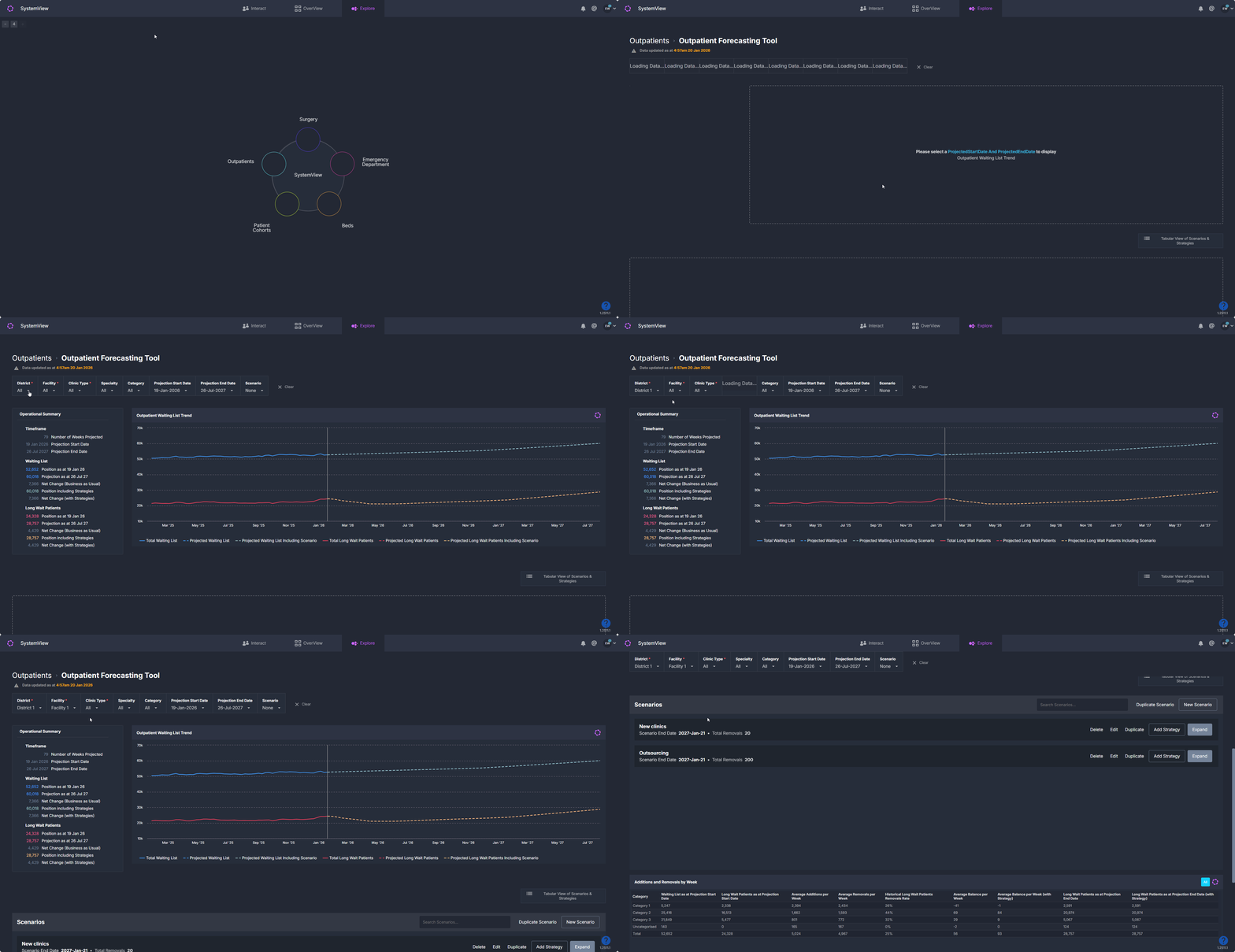**
1. Open **Explore** in SystemView.
2. Open the **Outpatients** domain.
3. Select **Outpatient Forecasting Tool**.
4. Use the filter bar to select your **District / Health region** and **Facility / Hospital**.
Once selected, the forecasting charts and the Scenarios section will load.
#### **Access via JurisdictionView**
1. Open **JurisdictionView** in SystemView.
2. Open the **Forecasting Tools** dropdown from the side menu.
3. Select **Outpatient Forecasting Tool**.
You can then apply the relevant filters to view forecasts and scenarios for your selected scope.
---
### **How to create a scenario**
#### **Step 1: Create a new scenario**
**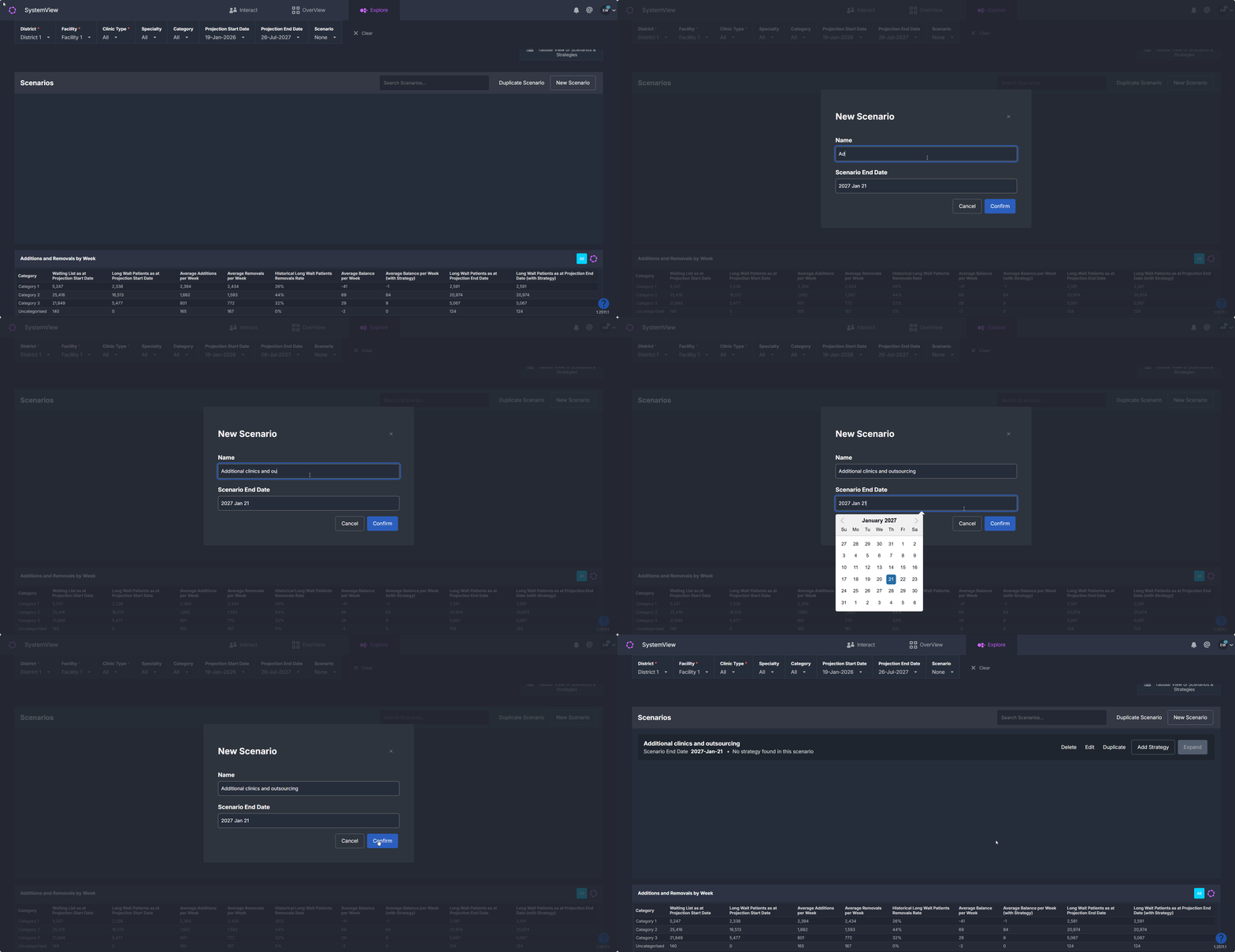**
1. In the **Scenarios** section, select **New Scenario**.
2. Enter a **scenario name** that clearly describes the assumption or strategy being tested.
3. Select a **scenario end date**.
- By default, the end date is set to one year from today.
4. Select **Confirm** to create the scenario.
The scenario will now appear in the Scenarios list.
#### **Step 2: Add a strategy to the scenario**
**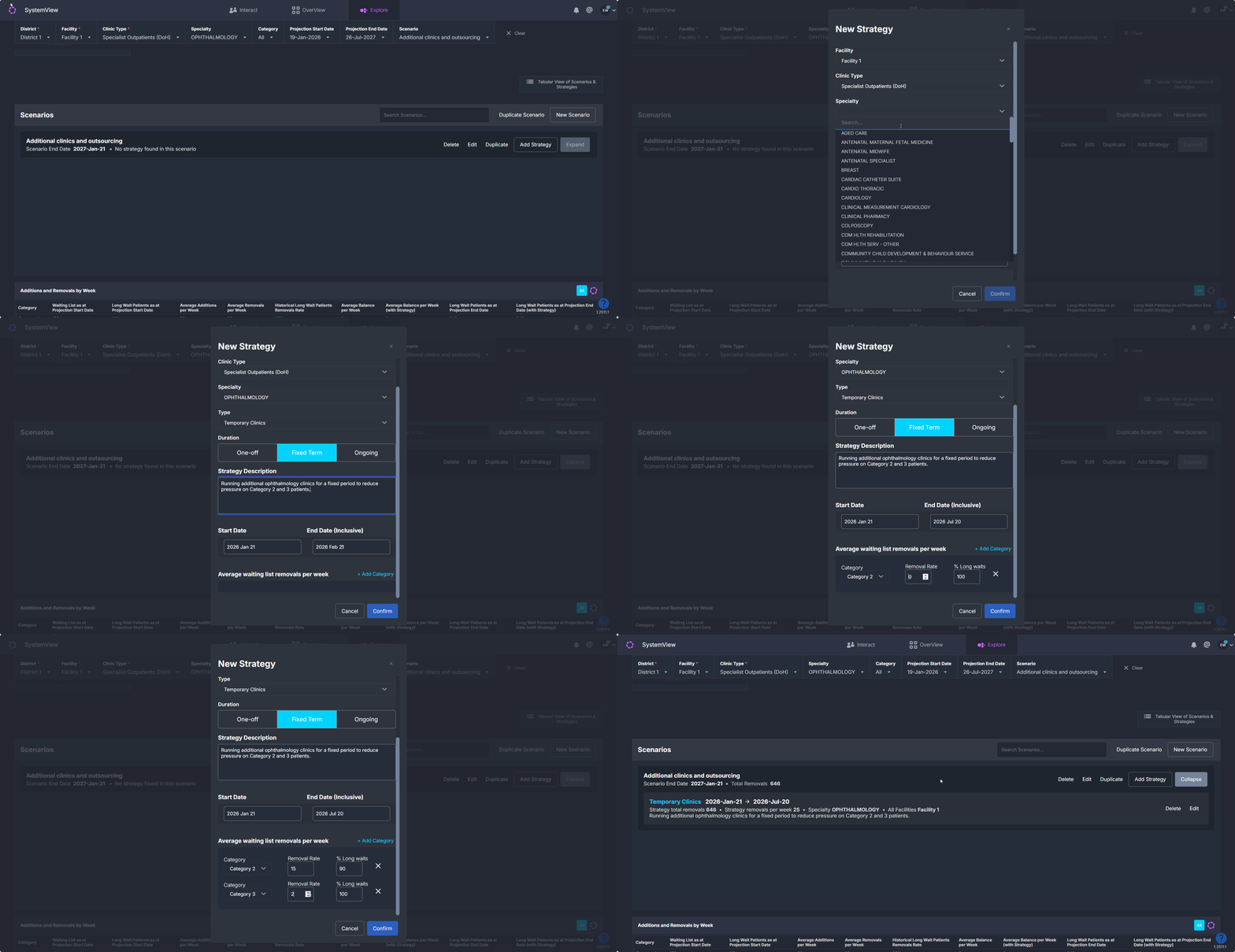**
1. Select **Add Strategy** on the newly created scenario.
2. Complete the strategy details:
- **Facility**
- **Clinic Type**
- **Specialty**
- **Strategy type**, for example:
- Audits
- Increased capacity
- Outsourcing
- Reduced capacity
- Temporary clinics
- Other
3. Select the **strategy duration**:
- **One-off:** a single, short-term impact applied once
- **Fixed-term:** applied continuously between a defined start and end date
- **Ongoing:** applied from the start date onward for the remainder of the forecast period
4. Enter a short **strategy description** to document the assumption being applied.
5. Confirm the **strategy start and end dates**.
6. Select **+ Category** to enter the expected **average waiting list removals per week** for the relevant categories.
7. Select **Confirm** to save the strategy.
**💡 Using multiple strategies within a scenario**
A single scenario can include **multiple strategies**, allowing you to model a combination of service changes together.
For example, you might include different strategies for:
- Different **clinic types** or **specialties**
- A mix of **increased and reduced capacity**
- Short-term actions alongside longer-running changes
This allows a scenario to represent a more realistic service plan, rather than a single isolated change.
#### **Step 3: Apply the scenario to the forecast**
**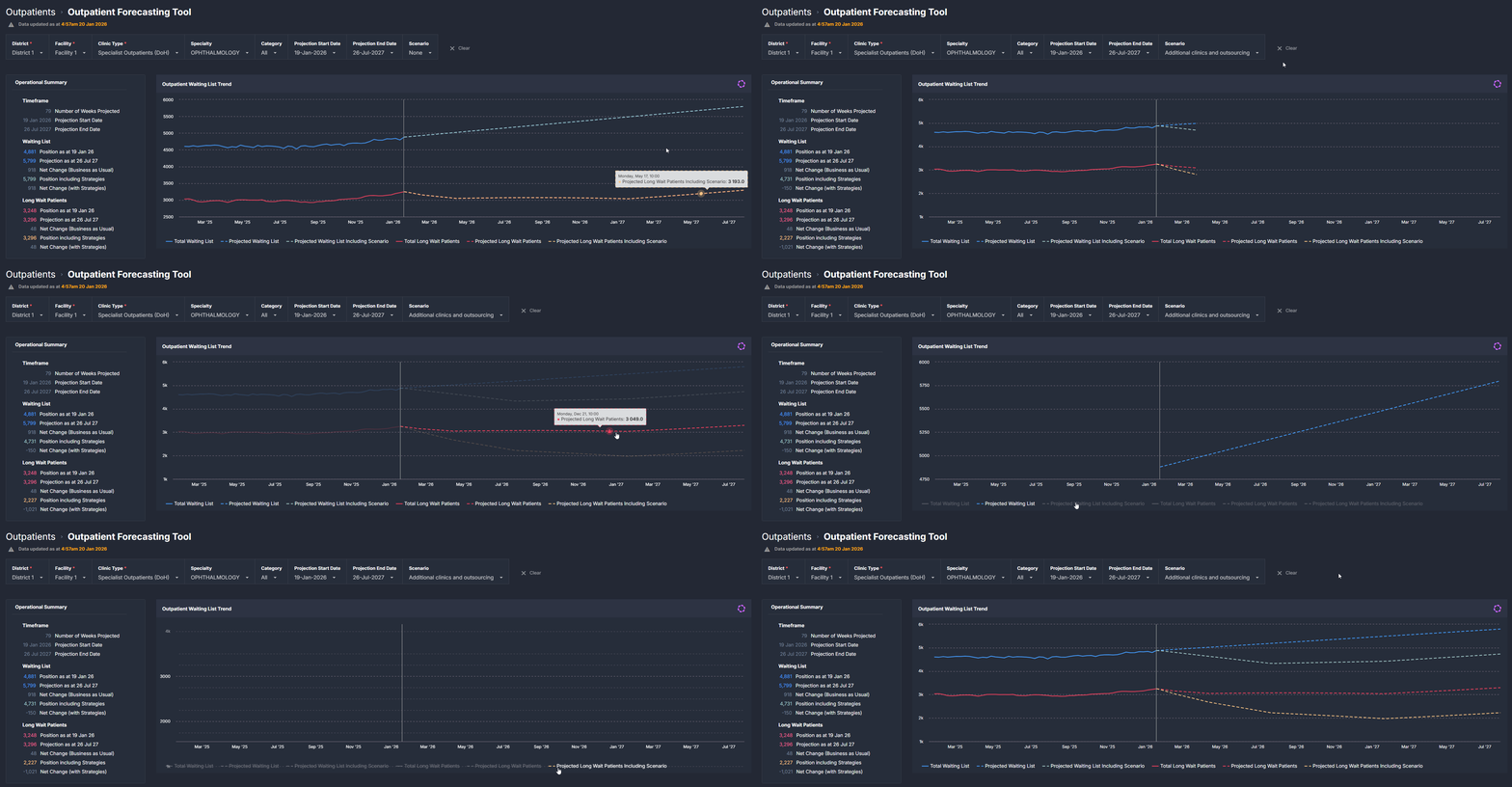**
1. Use the **Scenario** filter in the filter bar.
2. Select the scenario you want to view.
The charts will update to show:
- The **baseline forecast**, and
- The **scenario-adjusted forecast** for comparison.
---
### **Review and compare scenario outcomes**
Once a scenario is applied, you can use the charts and tiles to review its impact:
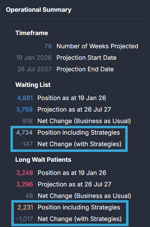
- **Operational Summary** shows projected waiting list and long waits at the start and end of the projection period.
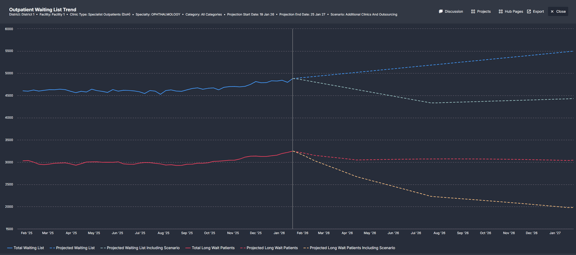
- **Outpatient Waiting List Trend** displays baseline and scenario projections over time.
- **Additions and Removals by Week** shows weekly demand and removals aligned with the selected filters.

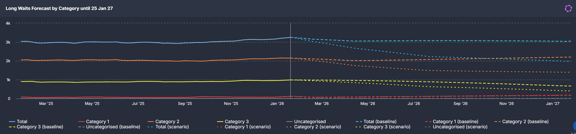
- **Long Wait Forecast by Category** highlights how long waits may change broken down by urgency category.
---
### **View scenario details in tabular form**
Select **Tabular View of Scenarios & Strategies** above the scenarios section to open a detailed table showing all scenarios and strategies broken down by:
- Facility
- Specialty
- Category
- Strategy type and duration
- Strategy dates
- Expected weekly removals
This view is useful for reviewing assumptions, validating inputs, and comparing how strategies differ across scenarios.
---
### **Using scenarios effectively**
Scenarios can be used to explore both:
- **Planned improvements**, such as increased clinics or outsourcing, and
- **Expected pressures**, such as reduced capacity, clinic closures, or increased demand.
They are intended to support planning, comparison, and discussion rather than to predict exact outcomes.
---
### **Tips for success**
- Start by reviewing the **baseline forecast** before applying scenarios.
- Use **clear scenario names** so assumptions are easy to understand later.
- Test **more than one scenario** to compare different approaches.
- Keep assumptions **realistic and transparent**.
- Revisit scenarios as service plans or demand change.
---
### **Interactive guide**
Use the interactive clickthrough guide below to see how to create and apply scenarios in the Outpatient Forecasting Tool.
This walkthrough demonstrates how to:
- Create a new scenario
- Add one or more strategies
- Apply the scenario to the forecast
- Compare baseline and scenario-adjusted outcomes
- [Getting Started](https://academy.healthcarelogic.com/knowledge/getting-started#main-content)
- [Welcome & Introduction](https://academy.healthcarelogic.com/knowledge/getting-started#welcome-introduction)
- [Access & Account Setup](https://academy.healthcarelogic.com/knowledge/getting-started#access-account-setup)
- [Basic Navigation & Layout](https://academy.healthcarelogic.com/knowledge/getting-started#basic-navigation-layout)
- [FAQs & Troubleshooting](https://academy.healthcarelogic.com/knowledge/getting-started#faqs-troubleshooting)
- [Interact](https://academy.healthcarelogic.com/knowledge/interact#main-content)
- [Interact Basics](https://academy.healthcarelogic.com/knowledge/interact#interact-basics)
- [Customising SystemView](https://academy.healthcarelogic.com/knowledge/interact#customising-systemview)
- [Sharing & Duplicating Content](https://academy.healthcarelogic.com/knowledge/interact#sharing-duplicating-content)
- [Using Notifications & Improvement Tools](https://academy.healthcarelogic.com/knowledge/interact#using-notifications-improvement-tools)
- [Surgery](https://academy.healthcarelogic.com/knowledge/surgery#main-content)
- [Introduction & Terminology](https://academy.healthcarelogic.com/knowledge/surgery#introduction-terminology)
- [Waiting List Management](https://academy.healthcarelogic.com/knowledge/surgery#waiting-list-management)
- [Scheduling & Booking Management](https://academy.healthcarelogic.com/knowledge/surgery#scheduling-booking-management)
- [Performance & Activity Analysis](https://academy.healthcarelogic.com/knowledge/surgery#performance-activity-analysis)
- [Emergency Surgery](https://academy.healthcarelogic.com/knowledge/surgery#emergency-surgery)
- [FAQs & Troubleshooting](https://academy.healthcarelogic.com/knowledge/surgery#faqs-troubleshooting)
- [Outpatients](https://academy.healthcarelogic.com/knowledge/outpatients#main-content)
- [Introduction & Terminology](https://academy.healthcarelogic.com/knowledge/outpatients#introduction-terminology)
- [Waiting List Management](https://academy.healthcarelogic.com/knowledge/outpatients#waiting-list-management)
- [Referral Management](https://academy.healthcarelogic.com/knowledge/outpatients#referral-management)
- [Wait Times](https://academy.healthcarelogic.com/knowledge/outpatients#wait-times)
- [Demand & Capacity Planning](https://academy.healthcarelogic.com/knowledge/outpatients#demand-capacity-planning)
- [Bookings & Reviews](https://academy.healthcarelogic.com/knowledge/outpatients#bookings-reviews)
- [Clinic Effectiveness & Appointment Outcomes](https://academy.healthcarelogic.com/knowledge/outpatients#clinic-effectiveness-appointment-outcomes)
- [Virtual Learning & Tools](https://academy.healthcarelogic.com/knowledge/outpatients#virtual-learning-tools)
- [Beds](https://academy.healthcarelogic.com/knowledge/beds#main-content)
- [Introduction & Foundations](https://academy.healthcarelogic.com/knowledge/beds#introduction-foundations)
- [Inpatient Demand & Capacity](https://academy.healthcarelogic.com/knowledge/beds#inpatient-demand-capacity)
- [Complex Patients Management](https://academy.healthcarelogic.com/knowledge/beds#complex-patients-management)
- [Risk of Hospitalisation & Readmissions](https://academy.healthcarelogic.com/knowledge/beds#risk-of-hospitalisation-readmissions)
- [Length of Stay & Inpatient Flow](https://academy.healthcarelogic.com/knowledge/beds#length-of-stay-inpatient-flow)
- [Inpatient Occupancy Forecaster](https://academy.healthcarelogic.com/knowledge/beds#inpatient-occupancy-forecaster)
- [Emergency Department](https://academy.healthcarelogic.com/knowledge/emergency-department#main-content)
- [Introduction & Foundations](https://academy.healthcarelogic.com/knowledge/emergency-department#introduction-foundations)
- [Department Now](https://academy.healthcarelogic.com/knowledge/emergency-department#department-now)
- [Flow Monitor](https://academy.healthcarelogic.com/knowledge/emergency-department#flow-monitor)
- [Performance Trends & Analytics](https://academy.healthcarelogic.com/knowledge/emergency-department#performance-trends-analytics)
- [Virtual Learning & Tools](https://academy.healthcarelogic.com/knowledge/emergency-department#virtual-learning-tools)
- [FAQs & Troubleshooting](https://academy.healthcarelogic.com/knowledge/emergency-department#faqs-troubleshooting)
- [SystemView 2](https://academy.healthcarelogic.com/knowledge/systemview-2)
- [System Administration](https://academy.healthcarelogic.com/knowledge/system-administration)
- [Patient Cohorts](https://academy.healthcarelogic.com/knowledge/patient-cohorts#main-content)
- [Beds](https://academy.healthcarelogic.com/knowledge/patient-cohorts#beds)
- [Emergency Department](https://academy.healthcarelogic.com/knowledge/patient-cohorts#emergency-department)
- [Release Notes](https://academy.healthcarelogic.com/knowledge/release-notes)
[](https://healthcarelogic.com/)
[mailto:customersuccess@healthcarelogic.com](mailto:customersuccess@healthcarelogic.com)
© 2026 HealthCare Logic. All rights reserved
**Didn't find what you were looking for?**
[Raise a support ticket](https://academy.healthcarelogic.com/knowledge/kb-tickets/new) and our team will come back to you. For guided training try the [Learning Hub](https://academy.healthcarelogic.com/learning-hub), or catch up on a [past webinar](https://academy.healthcarelogic.com/learning-hub/webinars).