
Your health service has its own access process. It says who can approve access and what each type of user should have. If anything here differs from that process, follow your process.
This article is for Local Administrators, who may also be called Local System Administrators (LSAs). For the screen-by-screen steps to add a user, see How to add and manage users in SystemView.
In this article:
- Handle an access request
- See which settings control access
- Choose a role
- Choose a user group
- Choose a Jurisdiction View User Group
- Set facility access
- Limit domains with Domain Block
- Check common set-ups
- Remove a user's access
- See what only HealthCare Logic can change
Handle an access request
Most users ask for access with the form on the SystemView sign-in page. They select Request Access and give:
- their username, which is their health network login
- their email address and name
- the domains they need, such as Surgery or Beds
- their user group, such as Clinical, Administration or Executive
- the facilities they need. Most people need only the hospital they work at, or the hospital network it belongs to.
- their reason for asking, such as their job title and how SystemView will help their work
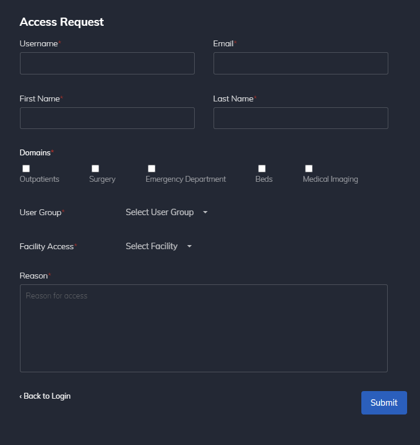
Each form creates an email to the inbox your project team set up for access requests. Some requests come by direct email instead, often from a manager asking for access for their staff. If you're unsure who sent one, check with them before you act on it.
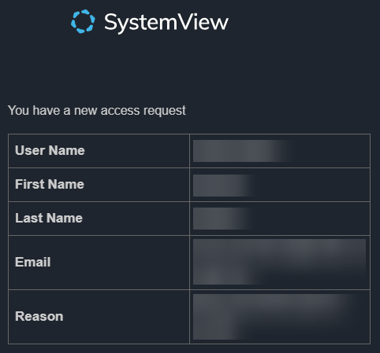
Before you set anything up:
- Check the request has everything you need.
- Check it fits your access process.
- If something is missing, contact the person who asked and get the details first.
- Wait for a yes from the approver your process names.
Then choose the settings below and add the user. You can set up most access yourself. If your own tools can't fix the problem, raise a support request and choose Access to SystemView. We follow your health service's access process. If your health service uses its own service desk to contact us, use that instead.
See which settings control access
No single setting controls a user's access. Each one below does a different job, so check them together.
| Setting | What it decides | Where you set it |
|---|---|---|
| Role | What the user can do, including any admin tools | Create New User form |
| User Group | The kind of work the user does, so they are grouped correctly in reports | Create New User form |
| Jurisdiction View User Group | Whether the user can open JurisdictionView, and which parts of it | Create New User form |
| Facility Access | Which facilities the user can see, and whether patient details are identifiable or Pseudo | Facility Access screen, after you create the user |
| Domain Block | Which domains are hidden from the user | Domain Block, under Applications |
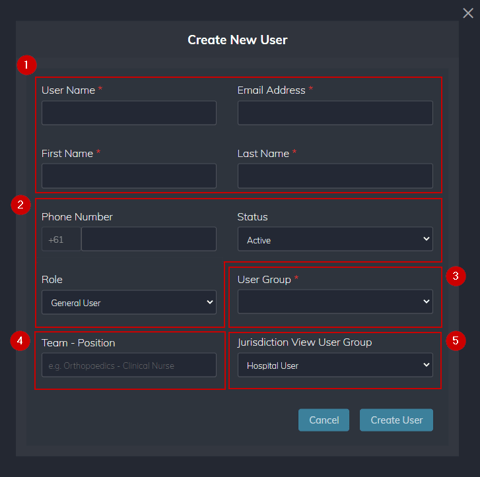
On the Create New User form, Role is in box 2, User Group is in box 3 and Jurisdiction View User Group is in box 5.
Choose a role
The role sets what a person can do in SystemView. It doesn't decide which facilities or domains they can see. Most people need General User.
| Role | Who it's for | What it lets them do |
|---|---|---|
| General User | Most staff, such as clinical, operational and reporting users | Use Explore and Interact for the facilities they have access to. No admin tools. |
| General User with Mandatory Workflow | Only the users your access process names | The same access as a General User. |
| Executive User | Executives and senior leaders who add organisational targets | Everything a General User can do, plus add organisational targets and standards. |
| Local Administrator | Staff who manage SystemView access, often your service desk | Everything an Executive User can do, plus the admin tools under Applications. |
| System Administrator | HealthCare Logic staff only | Manages the settings for your whole SystemView. You can't give this role to anyone. |
Only choose Local Administrator if your access process approves it. You can't edit your own account. If your own access needs to change, ask another Local Administrator or raise a support request.
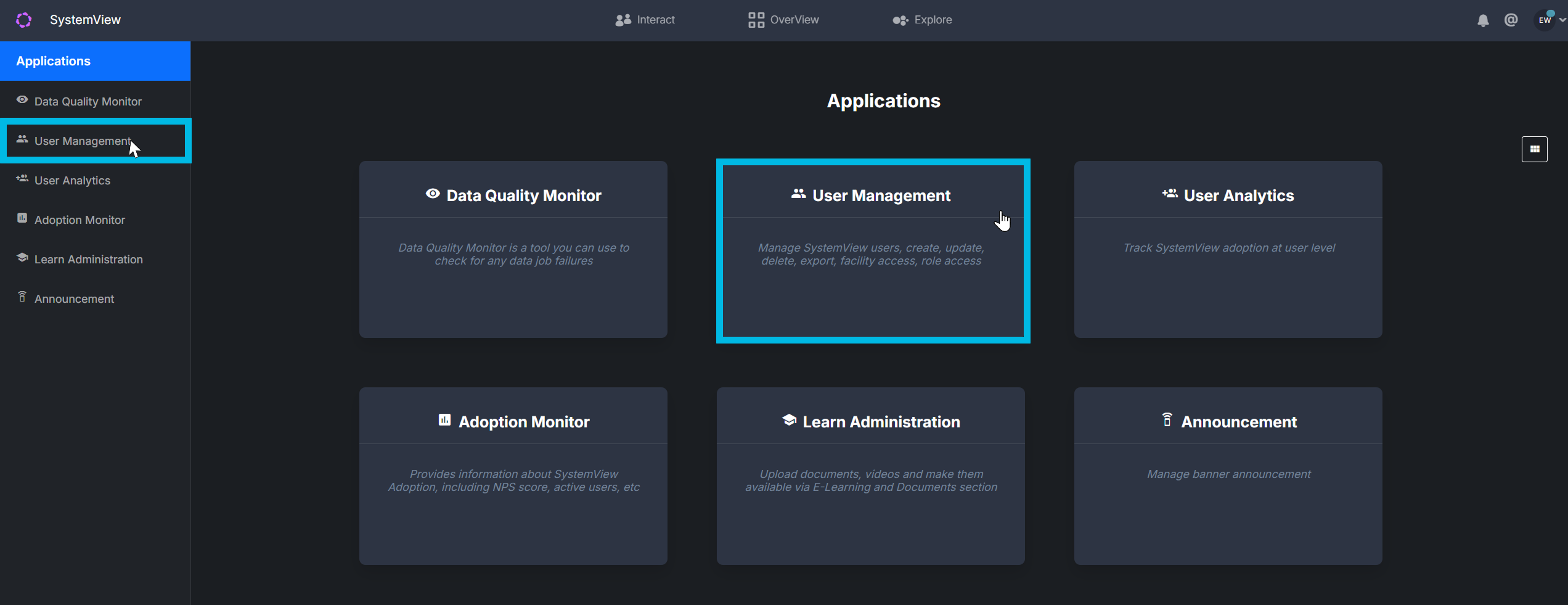
Local Administrators use the tools under Applications. The tools you see depend on your health service's setup.
Choose a user group
User Group describes the kind of work a person does. SystemView uses it to group people in reports. It doesn't change what a person can see. Choose the group that best fits their job.
| User Group | Choose it for |
|---|---|
| Clinical | Nurses, doctors and allied health staff |
| Clinical Leader | Clinical leaders, such as nurse managers, bed managers and clinical directors |
| Administration | Administrative staff, such as booking staff, admissions staff and clinic reception |
| Operational Leader | Managers, such as operations, finance and general managers |
| Executive | Executives, such as chief executives and chief operating officers |
| Local Administrator | Staff who manage SystemView access |
| Always On | Accounts for shared displays, such as a screen on a ward. These accounts are never signed out automatically. |
Choosing Executive here doesn't give someone the Executive User role. They are separate settings. Only use Always On if your access process allows it.
You may also see a group for department of health staff, and groups for HealthCare Logic staff. Don't use the HealthCare Logic groups.
Choose a Jurisdiction View User Group
JurisdictionView compares key measures across hospitals and health services. This group decides whether a user can open it and which of its four parts they get: KPIs and Trends, Scorecard, Demand and Capacity, and Forecasting Tools.
This area may have a different name at your health service. So may this field and the groups in it, which can use your own words, such as network or district.
| Group | Who it's for | Usual facility access | JurisdictionView |
|---|---|---|---|
| Hospital User | Staff who need some facilities in one health service, such as admin officers and clinical staff | Some facilities in one health service, identifiable | None |
| Hospital Group User | Staff who need every facility in one health service, such as directors | All facilities in one health service, identifiable | None |
| Hospital User with JurisdictionView Access | Executives of one health service | All facilities in one health service, identifiable | All four parts, for their own health service |
| Strategic User | Staff who compare health services, such as system performance staff | All relevant facilities, usually Pseudo | All four parts, across health services |
| Department of Health User | Central or statewide staff | All relevant facilities, usually Pseudo | KPIs and Trends and Scorecard only. Explore isn't available. |
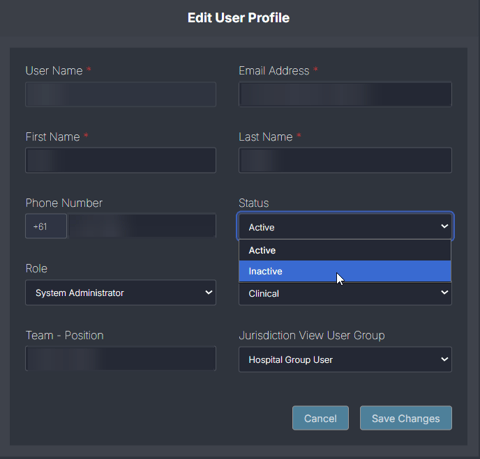
Here are the same fields on the Edit User Profile screen, with the list of groups open. Your list may show different names.
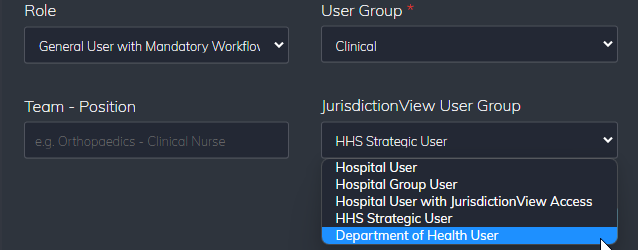
A Jurisdiction View User Group doesn't add facilities, and it doesn't set identifiable or Pseudo access. You set both in Facility Access. For example, choosing Strategic User doesn't make a user's access Pseudo.
Some health services have extra groups, such as a scorecard-only group or groups for the Coordination Hub. Your access process says who should have them. Availability depends on your deployment.
Set facility access
Facility access decides which facilities a user can see. A user can't see a facility's data until you add that facility. For each facility, choose one of these:
- Identifiable: the user sees patient details, such as names and record numbers.
- Pseudo: identifying patient details are hidden or replaced.
Only give identifiable access if your access process approves it for this user.
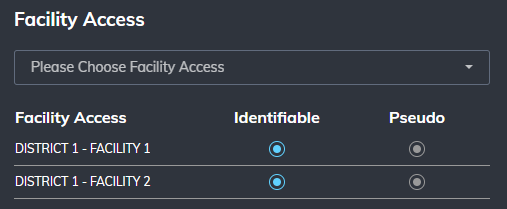
Keep these points in mind:
- After you change someone's facility access, they need to log out and log in again to see the change.
- A Strategic User needs every relevant district and facility, or JurisdictionView won't show the full picture.
- Feature Access on the left of this screen may show No Access Permission. That's expected, because only HealthCare Logic can change feature access.
Limit domains with Domain Block
By default, users can see every domain your health service has. Domain Block limits a group of users to the domains they need for their role. It's optional, so check your access process to see when to use it.
Domain Block only appears under Applications once HealthCare Logic has switched it on for your health service. To ask for this, raise a support request and choose A settings or feature access change.
Users in a Domain Block group can't see:
- the pages of the blocked domains
- any tiles or charts from those domains
- tiles from those domains that were added to personal or shared areas, such as MyView or MyHub
- tiles from those domains in the Notification List sidebar
Where a blocked tile would show, users see a No Permission message. To create a group and add users:
- Click the drop-down arrow in the top right corner and select Applications.
- Select Domain Block.
- Click Create New Group.
- Enter a group name and select the domains to block.
- Click Create.
- Click the user icon to open the Blocked Users panel.
- Search for the users to add and select them.
- Click Update.
The numbers in these screenshots match the steps above.
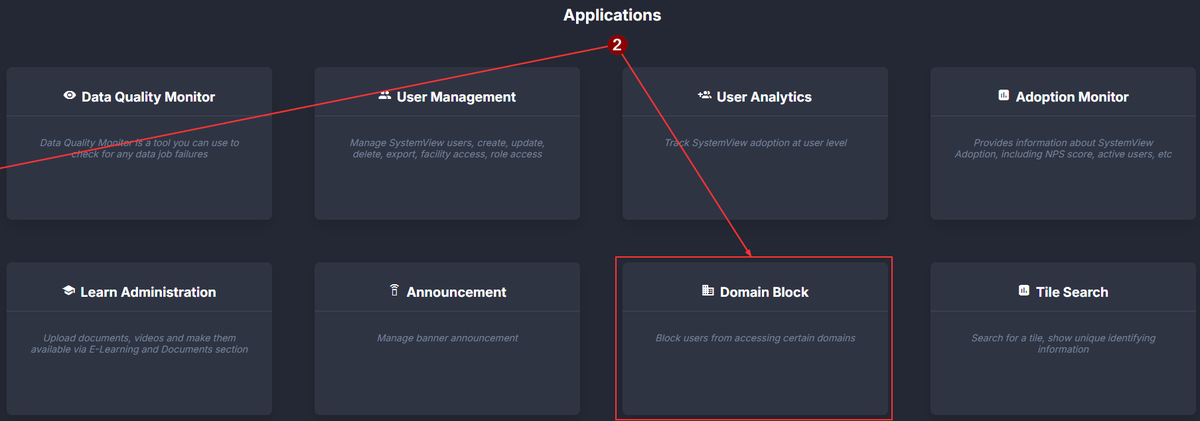
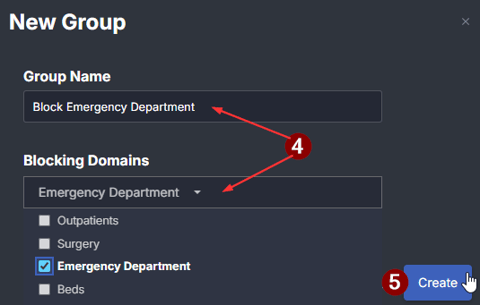
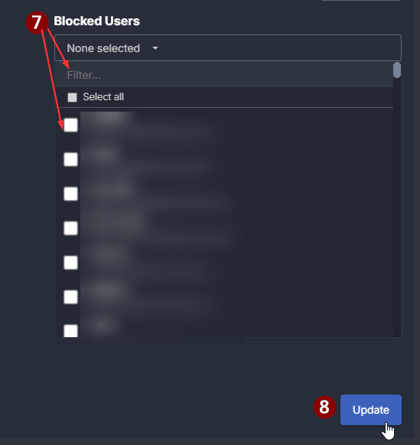
To get a list of the users in a group, click Export on the Blocked Users screen. The export covers that group only.
Check common set-ups
These examples show how the settings fit together. They are a guide only, so check them against your access process.
| Person | Role | User Group | Jurisdiction View User Group | Facility Access |
|---|---|---|---|---|
| A nurse at one hospital | General User | Clinical | Hospital User | Their hospital |
| A booking officer who works across two hospitals | General User | Administration | Hospital User | Those two hospitals |
| A director across your health service | General User | Clinical Leader or Operational Leader | Hospital Group User | All facilities in your health service |
| An executive who adds organisational targets | Executive User | Executive | Hospital User with JurisdictionView Access | All facilities in your health service |
| A new Local Administrator | Local Administrator | Local Administrator | As your access process says | As your access process says |
| A shared screen on a ward | General User | Always On | Hospital User | Only the facilities the screen shows |
Remove a user's access
Remove access when someone leaves, changes role or no longer needs SystemView. Unless your access process says otherwise, make the account inactive rather than deleting it.
| What happens | Make inactive | Delete |
|---|---|---|
| Can the user sign in? | No | No |
| Is the account kept? | Yes | No, it moves to the Deleted Users list |
| What happens to anything they shared with colleagues? | It stays available | It is deleted |
| Can you undo it? | Yes, make the account active again | Yes, restore it from the Deleted Users list |
Make an account inactive
- In User Management, find the user and click the pencil icon to open their profile.
- Change Status from Active to Inactive.
- Click Save Changes.
Delete an account
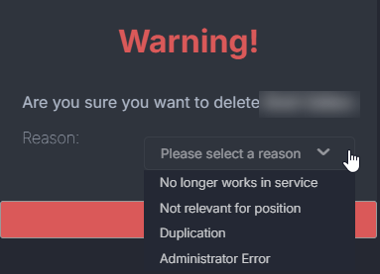
- In User Management, find the user and click the red bin icon.
- Choose a reason from the list.
- Select Delete to confirm.
Restore a deleted account
- In User Management, select Deleted Users.
- Find the user and click the clock icon in the Reinstate User column.
- Select Restore.
Now and then, check your user list for accounts that no longer need access.
See what only HealthCare Logic can change
Local Administrators manage people and their access. HealthCare Logic manages the settings that affect your whole SystemView. If a change affects one user or a group of users, you can usually make it yourself. If it changes what everyone can do, ask us.
| Task | Local Administrator | HealthCare Logic |
|---|---|---|
| Create, change and remove users | Yes | Yes |
| Set a user's role and groups | Yes | Yes |
| Set facility access, including identifiable or Pseudo | Yes | Yes |
| Create Domain Block groups and add users to them | Yes, once Domain Block is on | Yes |
| Post announcements and manage training resources | Yes | Yes |
| Switch Domain Block or another feature on or off | No | Yes |
| Change feature access for one user | No | Yes |
| Switch a component or facility on or off for your whole SystemView | No | Yes |
| Set up TeamView access | No | Yes |
| Change the pseudonymisation rules, which decide what gets hidden | No | Yes |
| Open the audit log | No | Yes |
To ask for something in this list, raise a support request. For a change, choose A settings or feature access change. Some features are part of a separate agreement. If so, we'll tell you. If your health service uses its own service desk to contact us, use that instead.