---
title: Patient Cohorts > Beds > Current Patients & Recent Trends
description: View real-time inpatient cohort data and historical trends in occupancy, admissions, and discharges with the Current Patients & Recent Trends component in SystemView.
---
[Skip to content](https://academy.healthcarelogic.com/knowledge/patient-cohorts/beds/current-patients-and-recent-trends#main-content)
[Contact Us](https://academy.healthcarelogic.com/knowledge/kb-tickets/new)
[](https://academy.healthcarelogic.com/knowledge)
- [Getting Started](https://academy.healthcarelogic.com/getting-started-with-systemview)
- [Domain Overviews](https://academy.healthcarelogic.com/learning-hub/domain-overviews)
- [On-demand Learning](https://academy.healthcarelogic.com/learning-hub/webinars/australia/on-demand-webinars)
- [Webinars](https://academy.healthcarelogic.com/learning-hub/webinars)
Open main navigation
Close main navigation
- [Getting Started](https://academy.healthcarelogic.com/getting-started-with-systemview)
- [Domain Overviews](https://academy.healthcarelogic.com/learning-hub/domain-overviews)
- [On-demand Learning](https://academy.healthcarelogic.com/learning-hub/webinars/australia/on-demand-webinars)
- [Webinars](https://academy.healthcarelogic.com/learning-hub/webinars)
- [Contact Us](https://academy.healthcarelogic.com/knowledge/kb-tickets/new)
- [Contact Us](https://info.healthcarelogic.com/contact-us)
[Contact Us](https://info.healthcarelogic.com/contact-us)
Search the Knowledge Base
- There are no suggestions because the search field is empty.
1. [SystemView Knowledge Base](https://academy.healthcarelogic.com/knowledge)
2. [Patient Cohorts](https://academy.healthcarelogic.com/knowledge/patient-cohorts)
3. [Beds](https://academy.healthcarelogic.com/knowledge/patient-cohorts#beds)
June 12, 2026
# Patient Cohorts \> Beds \> Current Patients & Recent Trends
## Understand who is in your hospital right now, how long they have been there, and how occupancy and flow have changed over time.
#### **Location in SystemView:** SystemView \> Explore \> Patient Cohorts \> Beds \> Current Patients & Recent Trends
**In this article:**
- [What it is](https://academy.healthcarelogic.com/knowledge/patient-cohorts/beds/current-patients-and-recent-trends#whatitis)
- [Why it matters](https://academy.healthcarelogic.com/knowledge/patient-cohorts/beds/current-patients-and-recent-trends#whyitmatters)
- [How to use it](https://academy.healthcarelogic.com/knowledge/patient-cohorts/beds/current-patients-and-recent-trends#howtouseit)
- [How it works](https://academy.healthcarelogic.com/knowledge/patient-cohorts/beds/current-patients-and-recent-trends#howitworks)
- [How it helps you](https://academy.healthcarelogic.com/knowledge/patient-cohorts/beds/current-patients-and-recent-trends#howithelpsyou)
- [Best practices](https://academy.healthcarelogic.com/knowledge/patient-cohorts/beds/current-patients-and-recent-trends#bestpractices)
- [FAQs](https://academy.healthcarelogic.com/knowledge/patient-cohorts/beds/current-patients-and-recent-trends#faqs)
---
### **What it is**
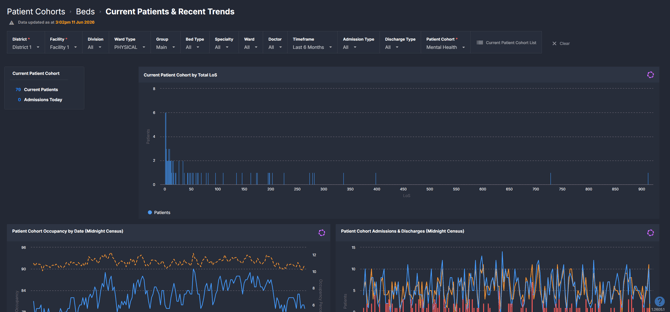
The **Current Patients & Recent Trends** component provides a real-time and historical view of all current inpatients belonging to the selected patient cohort. It shows who is currently admitted, how long they have been in hospital, and how occupancy, admissions, and discharges have changed over time. By combining real-time patient lists with systemwide flow insights, teams can better understand capacity pressures, identify risks, and plan for upcoming demand.
---
### **Why it matters**
##### *See the full picture of your inpatient cohort, from who is in a bed right now to how flow has shifted over time.*
- Identify long-staying or complex patients early by viewing the distribution of inpatients by length of stay.
- Understand occupancy patterns over time to anticipate peak periods and seasonal variation.
- Monitor the balance of admissions versus discharges to detect when inpatient numbers are growing.
- Gain ward-level visibility of bed availability and where cohort patients are concentrated.
- Drill into patient-level detail to support bed allocation and flow planning.
---
### **How to use it**
#### **Filter to focus your view**
Use the following filters to tailor the component to your area of interest:
- **Division** – Filter by hospital division (for example, Medicine or Surgery).
- **Group** – Filter by ward group: Main (inpatient overnight wards used for patient flow) or Other (includes non-overnight wards such as Medical Day Units).
- **Ward Type** – Filter by Physical (onsite) or Virtual (offsite, for example Hospital in the Home).
- **Bed Type** – Filter by bed classification (for example, standard, special purpose, or mental health beds).
- **Specialty** – Filter by treating specialty.
- **Ward** – Filter by a specific inpatient ward.
- **Doctor** – Filter by a specific treating consultant.
- **Timeframe** – Adjust the retrospective period for historical trend charts. The default is the last 6 months; options include the last 3, 12, or 18 months.
- **Admission Type** – Filter by how patients were admitted: Hospital (via the Emergency Department or scheduled pathways) or Ward (transferred from another ward).
- **Discharge Type** – Filter by discharge destination: Home (discharged to home) or Ward (transferred to another ward).
- **Patient Cohort** – Select the patient cohort to focus the component on (for example, Paediatrics).
#### **Review current patients and trends**
| Tile / Chart Name | What it shows |
| --- | --- |
| Current Patient Cohort | A summary tile showing the total number of current patients and admissions today in the selected cohort. Provides a high-level situational overview of current inpatient activity. |
| Current Patient Cohort by Total LoS | The distribution of current inpatients based on their total length of stay (LoS) in days. Helps teams quickly identify long-staying patients, patterns in bed usage, and potential discharge delays. |
| Patient Cohort Occupancy by Date (Midnight Census) | Historical trend of overall inpatient occupancy, including the number of occupied beds and occupancy percentage (occupied beds divided by total available beds). Helps teams understand peak periods, seasonal variation, and capacity pressures across the selected timeframe. |
| Patient Cohort Admissions & Discharges (Midnight Census) | Day-by-day historical trend of admissions and discharges for the selected cohort, along with the net balance of admissions versus discharges. Shows whether inpatient numbers are growing or reducing, and highlights periods where admissions exceed discharge capacity. |
| Current Patient Cohort by Facility | A breakdown of current inpatients in the selected cohort by facility or hospital within the district or health region. Useful for multi-hospital sites needing visibility across multiple campuses. |
| Current Patient Cohort by Specialty | Current inpatients grouped by treating specialty. Helps identify which clinical areas are contributing most to the cohort's current inpatient demand. |
| Current Patient Cohort by Consultant | Current inpatients in the selected cohort distributed by treating consultant. Highlights variations in individual caseloads and supports workload planning for clinical teams. |
| Patients by Ward and Cohort Status | A ward-by-ward view of occupancy showing patients who are: in the selected patient cohort, not in the selected patient cohort, boarder patients, or in available beds. Helps teams assess where the cohort is concentrated and identify ward pressures or bed availability relative to demand. |
#### **Access the Current Patient Cohort List**
The **Current Patient Cohort List** button opens a detailed table of all current inpatients matching the selected filters. The table includes:
- Patient identifiers
- Admission date and time
- Current ward and bed
- Treating consultant
- Primary diagnosis
Patients are sorted with the longest length of stay shown first, enabling quick identification of long-staying or complex patients.
---
### **How it works**
The Current Patients & Recent Trends component draws data from the hospital's source systems, reflecting the current state of inpatient admissions and historical midnight census records. Patient cohort membership is determined by the Patient Cohort filter selected in the filter bar. Data updates occur via scheduled refreshes; the timestamp displayed at the top of the component indicates when the data was last updated.
Historical trend charts use midnight census data, meaning they reflect the recorded state of occupancy, admissions, and discharges at midnight for each day within the selected timeframe.
---
### **How it helps you**
- **See your cohort at a glance:** Quickly understand how many patients are currently admitted, who came in today, and how caseloads are distributed across consultants, specialties, and wards.
- **Identify length of stay risks early:** The LoS distribution chart highlights patients who have been in hospital for extended periods, supporting earlier conversations around discharge planning.
- **Understand occupancy patterns over time:** Historical occupancy trends help teams recognise peak periods and seasonal variation, enabling more informed capacity planning.
- **Monitor admission and discharge balance:** The admissions and discharges trend shows whether inpatient numbers are growing or reducing, and flags periods where the hospital is admitting more than it is discharging.
---
### **Best practices**
#### **How often should I use it**
| What to do | How often | Who typically does this | Why it helps |
| --- | --- | --- | --- |
| Review the Current Patient Cohort tile and LoS distribution at the start of the day | **Daily** | Bed Managers, Nurse Unit Managers (NUMs), Hospital Nurse Coordinators | Provides an up-to-date picture of who is admitted and flags long-staying patients before the day begins |
| Monitor occupancy and admissions/discharges trends | **Weekly** | Bed Managers, Patient Flow Leads, Divisional Managers | Helps identify emerging pressure points and shifts in inpatient demand |
| Review the Current Patient Cohort List to support bed allocation | **As needed** (often multiple times daily during peak periods) | Bed Managers, Hospital Nurse Coordinators | Enables rapid identification of patients and their current location to support timely bed allocation |
| Review facility and specialty breakdowns to assess service-level demand | **Weekly or during escalation reviews** | Patient Flow Leads, Divisional Managers | Supports understanding of which services or campuses are driving cohort volumes |
#### **Pair with these components**
- **🔗** [**Live Inpatient Occupancy Forecast**](https://academy.healthcarelogic.com/knowledge/live-inpatient-occupancy-forecaster) – Combines the current state view from this component with forward-looking bed demand predictions to support proactive capacity planning.
- **🔗[Ward View \> Ward Demand](https://academy.healthcarelogic.com/knowledge/beds-ward-view-ward-demand)** – Provides ward-level demand and bed availability to complement the cohort-level view in this component.
- **🔗** [**Discharge Trends**](https://academy.healthcarelogic.com/knowledge/beds-discharge-trends) – Offers deeper analysis of discharge activity to help interpret the admissions and discharges trend displayed here.
#### **Tips for success**
- Use the **Patient Cohort** filter to narrow the view to the specific group most relevant to your role or current planning need.
- The **Group** filter is useful for separating overnight inpatient flow from day unit activity when reviewing occupancy data.
- The **Current Patient Cohort List** sorts by longest length of stay first, making it efficient for identifying patients who may need additional discharge planning support.
- When reviewing historical trends, consider adjusting the **Timeframe** filter to look across a longer period to identify seasonal patterns or longer-term changes in cohort volumes.
- At multi-hospital sites, apply the **Facility** filter alongside the **Patient Cohort** filter to understand how cohort demand is distributed across campuses.
---
#### **Want a detailed breakdown?**
If you’d like a more detailed look at every filter, chart, and tile in this component, you can download the **Patient Cohorts Beds - Current Patients & Recent Trends** guide below.
📎 **Download:** [Patient Cohorts \> Beds \> Current Patients & Recent Trends Guide](https://academy.healthcarelogic.com/hubfs/Patient%20Cohorts_Beds_Current%20Patients%20%26%20Recent%20Trends_Guide.pdf)
---
### **❓FAQs**
**Q. Why do historical trend charts use midnight census data rather than real-time figures?**
A. Historical trend charts in this component, including occupancy and admissions and discharges, are based on the midnight census. This is a standardised daily snapshot taken at midnight and is the consistent measure used for trend analysis across the Beds domain in SystemView. Real-time figures are reflected in the current patient tiles and the Current Patient Cohort List.
**Q. Can I see patients who have been discharged?**
A. The Current Patients & Recent Trends component focuses on currently admitted inpatients within the selected cohort. Historical discharge activity is visible through the admissions and discharges trend charts. For detailed analysis of discharged patients, refer to the [Discharge Trends ›](https://academy.healthcarelogic.com/knowledge/beds-discharge-trends) component.
- [Getting Started](https://academy.healthcarelogic.com/knowledge/getting-started#main-content)
- [Welcome & Introduction](https://academy.healthcarelogic.com/knowledge/getting-started#welcome-introduction)
- [Access & Account Setup](https://academy.healthcarelogic.com/knowledge/getting-started#access-account-setup)
- [Basic Navigation & Layout](https://academy.healthcarelogic.com/knowledge/getting-started#basic-navigation-layout)
- [FAQs & Troubleshooting](https://academy.healthcarelogic.com/knowledge/getting-started#faqs-troubleshooting)
- [Interact](https://academy.healthcarelogic.com/knowledge/interact#main-content)
- [Interact Basics](https://academy.healthcarelogic.com/knowledge/interact#interact-basics)
- [Customising SystemView](https://academy.healthcarelogic.com/knowledge/interact#customising-systemview)
- [Sharing & Duplicating Content](https://academy.healthcarelogic.com/knowledge/interact#sharing-duplicating-content)
- [Using Notifications & Improvement Tools](https://academy.healthcarelogic.com/knowledge/interact#using-notifications-improvement-tools)
- [Surgery](https://academy.healthcarelogic.com/knowledge/surgery#main-content)
- [Introduction & Terminology](https://academy.healthcarelogic.com/knowledge/surgery#introduction-terminology)
- [Waiting List Management](https://academy.healthcarelogic.com/knowledge/surgery#waiting-list-management)
- [Scheduling & Booking Management](https://academy.healthcarelogic.com/knowledge/surgery#scheduling-booking-management)
- [Performance & Activity Analysis](https://academy.healthcarelogic.com/knowledge/surgery#performance-activity-analysis)
- [Emergency Surgery](https://academy.healthcarelogic.com/knowledge/surgery#emergency-surgery)
- [FAQs & Troubleshooting](https://academy.healthcarelogic.com/knowledge/surgery#faqs-troubleshooting)
- [Outpatients](https://academy.healthcarelogic.com/knowledge/outpatients#main-content)
- [Introduction & Terminology](https://academy.healthcarelogic.com/knowledge/outpatients#introduction-terminology)
- [Waiting List Management](https://academy.healthcarelogic.com/knowledge/outpatients#waiting-list-management)
- [Referral Management](https://academy.healthcarelogic.com/knowledge/outpatients#referral-management)
- [Wait Times](https://academy.healthcarelogic.com/knowledge/outpatients#wait-times)
- [Demand & Capacity Planning](https://academy.healthcarelogic.com/knowledge/outpatients#demand-capacity-planning)
- [Bookings & Reviews](https://academy.healthcarelogic.com/knowledge/outpatients#bookings-reviews)
- [Clinic Effectiveness & Appointment Outcomes](https://academy.healthcarelogic.com/knowledge/outpatients#clinic-effectiveness-appointment-outcomes)
- [Virtual Learning & Tools](https://academy.healthcarelogic.com/knowledge/outpatients#virtual-learning-tools)
- [Beds](https://academy.healthcarelogic.com/knowledge/beds#main-content)
- [Introduction & Foundations](https://academy.healthcarelogic.com/knowledge/beds#introduction-foundations)
- [Inpatient Demand & Capacity](https://academy.healthcarelogic.com/knowledge/beds#inpatient-demand-capacity)
- [Complex Patients Management](https://academy.healthcarelogic.com/knowledge/beds#complex-patients-management)
- [Risk of Hospitalisation & Readmissions](https://academy.healthcarelogic.com/knowledge/beds#risk-of-hospitalisation-readmissions)
- [Length of Stay & Inpatient Flow](https://academy.healthcarelogic.com/knowledge/beds#length-of-stay-inpatient-flow)
- [Inpatient Occupancy Forecaster](https://academy.healthcarelogic.com/knowledge/beds#inpatient-occupancy-forecaster)
- [Emergency Department](https://academy.healthcarelogic.com/knowledge/emergency-department#main-content)
- [Introduction & Foundations](https://academy.healthcarelogic.com/knowledge/emergency-department#introduction-foundations)
- [Department Now](https://academy.healthcarelogic.com/knowledge/emergency-department#department-now)
- [Flow Monitor](https://academy.healthcarelogic.com/knowledge/emergency-department#flow-monitor)
- [Performance Trends & Analytics](https://academy.healthcarelogic.com/knowledge/emergency-department#performance-trends-analytics)
- [Virtual Learning & Tools](https://academy.healthcarelogic.com/knowledge/emergency-department#virtual-learning-tools)
- [FAQs & Troubleshooting](https://academy.healthcarelogic.com/knowledge/emergency-department#faqs-troubleshooting)
- [SystemView 2](https://academy.healthcarelogic.com/knowledge/systemview-2)
- [System Administration](https://academy.healthcarelogic.com/knowledge/system-administration)
- [Patient Cohorts](https://academy.healthcarelogic.com/knowledge/patient-cohorts#main-content)
- [Beds](https://academy.healthcarelogic.com/knowledge/patient-cohorts#beds)
- [Emergency Department](https://academy.healthcarelogic.com/knowledge/patient-cohorts#emergency-department)
- [Release Notes](https://academy.healthcarelogic.com/knowledge/release-notes)
[](https://healthcarelogic.com/)
[mailto:customersuccess@healthcarelogic.com](mailto:customersuccess@healthcarelogic.com)
© 2026 HealthCare Logic. All rights reserved
**Didn't find what you were looking for?**
[Raise a support ticket](https://academy.healthcarelogic.com/knowledge/kb-tickets/new) and our team will come back to you. For guided training try the [Learning Hub](https://academy.healthcarelogic.com/learning-hub), or catch up on a [past webinar](https://academy.healthcarelogic.com/learning-hub/webinars).