
Location in SystemView: Outpatients > Clinic Effectiveness > OPD Productivity
In this article
What it is
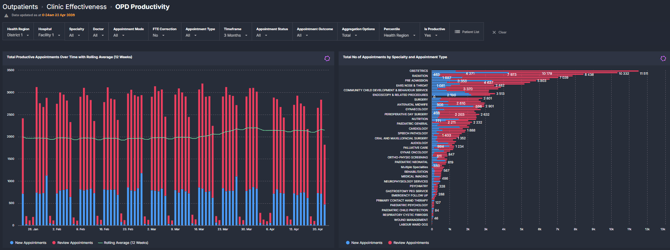
The OPD Productivity component provides a detailed view of outpatient activity, focusing on productive appointments across new and review pathways, alongside appointment outcomes and variation.
It allows users to explore productivity at multiple levels, including health region, hospital, specialty, consultant, and clinic, using both volume-based and percentile-based comparisons.
Why it matters
Understand how outpatient activity varies across the system, how it compares between peers, and what factors may influence productivity.
The OPD Productivity component supports a structured view of outpatient performance by combining activity, benchmarking, outcomes, and workforce context.
- Enable fair comparison of productivity
Use FTE-adjusted views and percentile distributions to compare consultants and services on a consistent basis - Identify variation across multiple levels
Explore differences across health regions, hospitals, specialties, clinics, and individual consultants - Understand activity distribution and scale
Analyse how appointment volumes are split between new and review activity and how this varies by service - Incorporate outcomes into performance review
Assess how activity translates into outcomes such as discharge, review, and other follow-on pathways - Provide context for interpreting performance
Use supporting workforce views, including non-consultant staffing and FTE configuration, to better understand differences in throughput - Support informed planning and service discussions
Use trends, distributions, and comparisons to guide conversations on capacity, clinic design, and service delivery
How to use it
Filter to focus your view
Use the filter bar to tailor the analysis:
- Health Region: View performance across regions
- Hospital: Focus on a specific facility
- Specialty: Analyse by clinical specialty
- Doctor: Drill down to individual consultant level
- Appointment Mode: Filter by how the appointment was delivered
- FTE Correction (Yes/No): Adjust activity to a 1.0 FTE equivalent for comparison
- Appointment Type: New or review appointments
- Timeframe: Select reporting period (e.g. 3 months)
- Appointment Status: Filter by booking status
- Appointment Outcome: Filter by outcome category
- Aggregation Options: Control how data is grouped (e.g. total, average by doctor/clinic)
- Percentile: Choose comparison grouping (e.g. Health Region)
- Is Productive (Yes/No): Include only productive activity
- Patient List: Access underlying patient-level data
Explore productivity, variation, and outcomes
| Tile / Chart Name | What it shows |
|---|---|
| Total Productive Appointments Over Time with Rolling Average (12 Weeks) | Trend of new and review appointments over time, with a 12-week rolling average to show underlying patterns |
| Total No of Appointments by Specialty and Appointment Type | Volume of new vs review appointments across specialties |
| Percentile Distribution by National | Distribution of appointment volumes at a national level, highlighting median and variation |
| Percentile Distribution by Health Region | Distribution of activity within a selected region to compare spread and outliers |
| Total No of Appointments by Consultant and Appointment Type | Comparison of consultant activity with percentile markers to show relative performance.
In addition the highest number of appointments is displayed compared to the National Percentile Distribution. |
| Total No of Appointments by Clinic Name and Appointment Type | Activity split by clinic, highlighting contribution of individual clinics |
| Total No of Appointments by Health Region and Appointment Type | Regional comparison of new and review volumes |
| Total No of Appointments by Hospital and Appointment Type | Facility-level breakdown of activity |
| Total No of Appointments by Outcome over time and by App Type | Trends in outcomes such as discharge, review, and other categories over time |
| Total No of Appointments by Consultant and Outcome | Outcome mix at consultant level, showing how appointments are resolved |
| Non-Consultant Hospital Clinicians – Total No. of Staff per Hospital and Specialty | Workforce view showing counts of non-consultant roles (e.g. Registrars, SHOs, Interns, CNS, ANP) by hospital and specialty, including totals and last update timing |
| Doctor FTE Configuration | Configuration table showing clinician-level FTE inputs, including start and end dates, enabling adjustment of FTE-based productivity calculations |
How it works
The OPD Productivity component uses outpatient appointment data sourced from local systems and refreshed regularly in SystemView.
Appointments can be filtered to include only productive activity, and are grouped dynamically based on the selected filters, such as region, hospital, specialty, consultant, and clinic.
Productivity and aggregation
Activity is aggregated across new and review appointments, and can be analysed over time or compared across organisational levels.
Rolling averages, such as the 12-week rolling average, are applied to reduce short-term variation and highlight underlying trends.
Percentile views position activity relative to peers within the selected grouping (for example, within a health region), supporting comparison without defining fixed targets.
FTE-adjusted activity
When the FTE Correction filter is enabled, consultant activity is normalised to a 1.0 full-time equivalent, allowing comparison across clinicians with different working patterns.
FTE values are determined as follows:
-
Where available, site-provided FTE inputs are used (as shown in the Doctor FTE Configuration view), including effective start and end dates
-
Where FTE values are not provided, SystemView derives FTE based on the distribution of outpatient activity across sites
This ensures that productivity comparisons reflect relative workload rather than contracted hours.
Workforce context
The Non-Consultant Hospital Clinicians view provides additional context on supporting workforce composition by hospital and specialty, including roles such as registrars, SHOs, interns, CNS, and ANP.
While this data does not directly change productivity calculations, it supports interpretation by highlighting differences in team structure that may influence clinic throughput and outcomes.
How it helps you
- Compare productivity fairly
Use FTE correction and percentile views to compare consultants on a consistent basis, regardless of working patterns - Identify variation across the system
Explore differences in activity across health regions, hospitals, specialties, clinics, and individual consultants - Understand clinic activity mix
Analyse the balance between new and review appointments to support service planning and clinic design - Monitor appointment outcomes
Track how activity translates into outcomes such as discharge, review, or other follow-on activity - Provide context for performance
Use workforce views, including non-consultant staffing, to support interpretation of differences in throughput - Support capacity and planning discussions
Use trends, distributions, and benchmark positioning to inform operational and service-level decisions
Best practices
How often should I use it?
| What to do | How often | Who typically does this | Why it helps |
|---|---|---|---|
| Review outpatient activity and trends | Weekly | Operations Managers, Service Managers | Maintains visibility of throughput and variation |
| Compare consultant productivity using percentiles and FTE correction | Monthly | Clinical Leads, Heads of Department | Supports consistent and fair benchmarking |
| Monitor appointment outcomes and clinic mix | Weekly | Clinic Coordinators, Business Managers | Helps identify inefficiencies and follow-up patterns |
| Review variation across regions and hospitals | Monthly | Executives, General Managers | Supports system-level planning and alignment |
| Review workforce context alongside activity | As needed | Service Managers, Clinical Leads | Provides context when interpreting productivity differences |
Pair with these components
- 🔗 Outpatients > Waiting List > Dynamics
To understand how outpatient activity relates to demand and waiting times - Clinic Effectiveness Components
For deeper analysis of 🔗FTAs/DNAs and🔗Cancellations. - 🔗Surgery Domain
To explore downstream impact where outpatient activity leads to admissions
Tips for success
- Use FTE correction when comparing consultants to avoid misinterpreting part-time activity
- Use percentile views to understand relative position rather than applying fixed targets
- Review trends over time alongside point-in-time comparisons
- Consider outcomes and activity together to avoid focusing on volume alone
- Use workforce context (e.g. non-consultant staffing) to support interpretation, not as a direct measure of productivity
- Be aware that definitions and configurations may vary by site
FAQs
What does the FTE Correction filter do in OPD Productivity?- The FTE Correction filter allows you to view outpatient activity either as actual volumes or adjusted to reflect a full-time equivalent (FTE) workload for each consultant.
- FTE Correction = No
Displays the actual number of patients seen during the selected time period.
This reflects true recorded activity without adjustment. -
FTE Correction = Yes
Adjusts the number of patients to reflect what the consultant would have seen if they were working at 1.0 FTE.
For example:
- A consultant working at 0.5 FTE sees 100 patients
- With FTE Correction set to Yes, this is adjusted to 200 patients
How FTE is determined?
FTE values are based on information provided by each site and entered in the OPD productivity component.
- If site-provided FTE data exists, SystemView uses this directly
- If no FTE data is provided, SystemView estimates FTE based on the consultant’s distribution of outpatient activity across sites
For example:
- 50% of activity at Site A
- 50% of activity at Site B
→ FTE is interpreted as 0.5 at Site A and 0.5 at Site B