
Location in SystemView: SystemView > Explore > Surgery > Chronological Management > Treated in Turn
In this article:
What it is
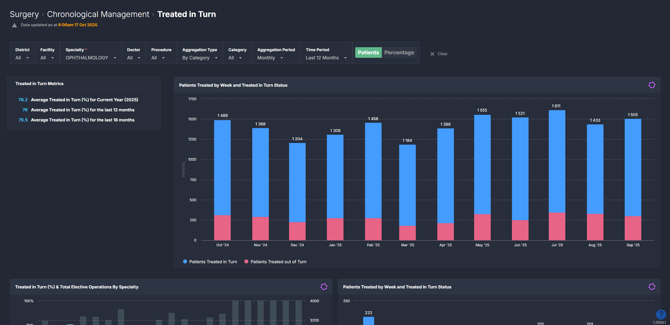
The Treated in Turn component shows how consistently patients have been treated in the correct order, based on their clinical category and treat-by date. It looks back at elective operations already performed.
It helps surgical teams monitor equity and timeliness in treating patients, and identify areas where out-of-turn treatment may be occurring. To check the booking order for patients who are still waiting, use Booked in Turn.
Why it matters
Promote fairness and transparency in surgical scheduling.
Keeping patients treated in turn supports equitable access and helps hospitals meet elective surgery targets. This component enables users to:
- Monitor the proportion of patients treated in chronological order.
- Identify where treatment order varies between specialties or clinicians.
- Support compliance with elective surgery policy frameworks.
- Analyse booking and treatment patterns to improve scheduling fairness.
How to use it
Filter to focus your view
You can explore data by applying filters in the filter bar or by clicking through the charts as you scroll. This makes it easy to move from hospital-level elective activity down to specialty, doctor and procedure-level detail.
Filters include:
- District and Facility: limit the data to a district or hospital.
- Specialty: view treated-in-turn performance by specialty.
- Doctor: focus on an individual clinician's treated-in-turn data.
- Procedure: drill into results for a specific procedure.
- Aggregation type: choose how patients are grouped when they are ranked:
- By Category: ranks and reports each category separately.
- By Category Group: ranks Category 2 and 3 patients together, with Category 1 on its own.
Use in combination with the Category filter to choose which patients to include.
- Category: select the elective surgery urgency category to analyse.
- Aggregation period: choose Monthly (each calendar month) or Rolling 4 Weeks (each weekly point covers the preceding four weeks).
- Time period: view results for the current year, the last 12 months or the last 18 months.
Check the headline rates
The Treated in Turn Metrics tile shows the average treated-in-turn rate for three periods: the current year, and the last 12 and 18 months. It updates as you change the filters.
Explore treated-in-turn trends
The trend charts show the patients treated in each period who are included in the analysis, split into those treated in turn and those treated out of turn. You can view these trends at the hospital, specialty, doctor and procedure level as you drill down.
The specialty, doctor and procedure charts show each one's treated-in-turn percentage, with the total elective operations in the last 12 months shown as red triangles. Select a bar to open the next level.
Use the Patients / Percentage toggle at the top of the component to change how the charts are displayed:
- Patients view: shows the number of patients treated in turn and out of turn.
- Percentage view: shows the treated-in-turn trend as a percentage.
The trend chart titles say “by Week” for both aggregation periods. With Monthly selected, each bar is a calendar month. With Rolling 4 Weeks selected, each point is labelled with its week but covers the preceding four weeks, so it is not a single week's activity.
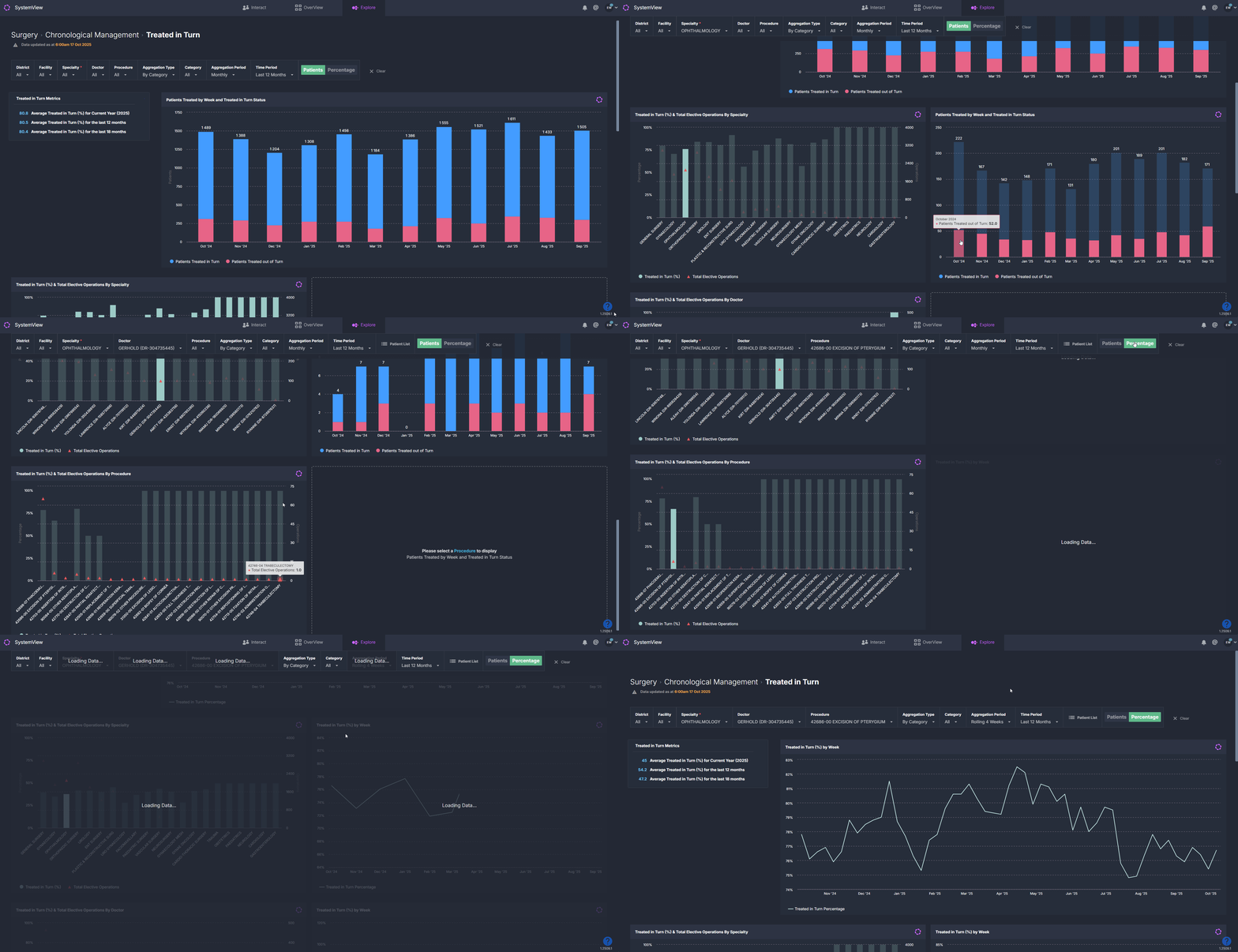
💡 Tip: You can refine your filters as you scroll through the charts. Each selection updates the charts below it.
Explore patient-level insights
Once you select a doctor, the Patient List button appears. Select it to open a detailed table of the doctor's operations, including those that have already occurred (highlighted in grey) and those that have been booked. This list shows whether each patient has been treated or booked in turn and includes details such as:
- Date added to the waiting list
- Operation booking date
- Clinical priority
- Treat-in-turn status (Yes or No)
You can export the patient list to Excel for deeper analysis or reporting. See How to export in SystemView › for step-by-step instructions.
How it works
Treated in Turn is calculated for each doctor, then added up for specialties, facilities and districts. It looks at elective operations completed in the selected period.
Calculation logic
- Each doctor's waiting list is ranked by treat-by date, within the grouping set by the Aggregation type filter.
- If a doctor treated a number of patients in the period, a treated patient counts as treated in turn when they were ranked within that number on the doctor's list.
- The treated-in-turn percentage is the patients treated in turn divided by all patients treated.
For example, a doctor treats 50 Category 2 patients in a month. 30 of them were ranked in the top 50 of the doctor's Category 2 list, so the doctor's rate is 30 ÷ 50 = 60%. If another doctor in the same specialty treats 40 and 35 of them were in their top 40, the specialty's rate is (30 + 35) ÷ (50 + 40) = 72%.
Who is excluded
Outsourced patients, patients who were not ready for surgery (NRFS) during the period, and patients removed from the waiting list for reasons other than treatment are left out of the ranking and the counts.
Because of these exclusions, the number of patients treated here can be lower than in Activity Trends > Elective by Category for the same filters. A Rolling 4 Weeks point also covers four weeks, so compare it with four weeks of activity, not one.
How it helps you
- Identify specialties or doctors with higher out-of-turn rates.
- Show adherence to chronological management principles for planning and governance.
- Highlight cases for audit or review.
- Bring data on waiting list management to discussions with clinicians.
- Export patient-level data for validation or operational review.
Best practices
How often should I use it?
| What to do | How often | Who should do it | Why it helps |
| Review treated-in-turn trends by specialty | Weekly | Surgical service managers | Detect early deviations from fair scheduling |
| Drill to doctor level for audit | Monthly | Theatre and specialty coordinators | Identify recurring out-of-turn patterns |
| Export patient list for analysis and validation | As needed | Data analysts, business support | Ensure booking data accuracy and trace reasons for variation |
Pair with these components
- 🔗 Chronological Management > Booked in Turn
Compare how patients are booked versus treated in order to assess fairness across both stages of the surgical process. - 🔗 Chronological Management > Booking Auditor
Identify out-of-sequence bookings that may lead to patients being treated out of turn. - 🔗 Waiting List > Risks & Projections
Assess whether out-of-turn treatment is affecting patients at risk of breaching their recommended timeframes. - 🔗 Theatre Effectiveness > Utilisation
Explore if treated-in-turn variation aligns with changes in theatre capacity or utilisation.
Tips for success
- Use the drill-down to explore performance without manually changing filters.
- Use the Patients / Percentage toggle to compare volume with rate.
- Export the patient list regularly for internal validation and reporting.
- Look for patterns of out-of-turn treatment to guide discussion with clinical teams.
FAQs
Why doesn't the number of patients treated match Activity Trends?
Treated in Turn leaves out some patients, such as those who were outsourced or not ready for surgery, so its count can be lower. See Who is excluded above. If you are using Rolling 4 Weeks, each point also covers four weeks rather than one.
What does Rolling 4 Weeks show?
Each weekly point shows the treated-in-turn result for the preceding four weeks. Choose Monthly to see each calendar month instead.
Want a detailed breakdown?
If you’d like a more detailed look at every filter, chart, and tile in this component, you can download the Treated in Turn Guide below.
📎 Download: Chronological Management > Treated in Turn Guide