
Location in SystemView: Surgery > Waiting List > Sláintecare Maximum Waiting Times
In this article:
What it is
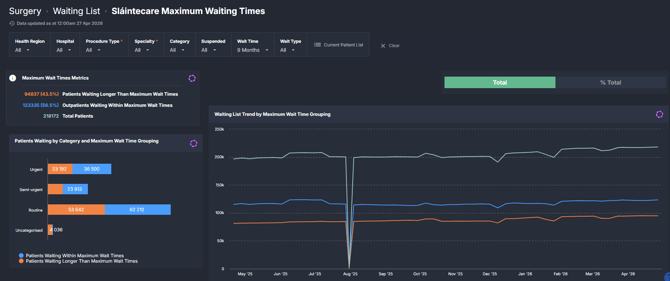
The Sláintecare Maximum Waiting Times component shows how long patients have been waiting for elective procedures compared to Sláintecare national maximum wait time targets.
Patients are grouped based on whether they are:
- Within maximum wait time
- Waiting longer than the maximum wait time
These groupings are based on defined Sláintecare thresholds:
- Urgent: 10 days
- Semi-Urgent: 12 weeks
- Routine: 12 months
The component provides a breakdown of waiting list performance across categories, specialties, procedures, and booking status.
Why it matters
Track performance against nationally defined waiting time targets.
This component helps you assess whether patients are being treated within expected timeframes and where delays are occurring.
- Monitor compliance with Sláintecare targets
- Identify cohorts waiting longer than recommended
- Understand where delays are concentrated across specialties and procedures
- Support prioritisation and planning to reduce overdue waits
How to use it
Filter to focus your view
Use the filter bar to refine the patient cohort:
- Health Region: Filter by region
- Hospital: Filter by hospital site
- Procedure Type: Select procedure classifications
- Specialty: Focus on a surgical specialty
- Category: Filter by urgency category (Urgent, Soon, Routine)
- Suspended: Include or exclude patients marked as Not Ready for Care
- Wait Time: Filter patients based on a selected wait duration (e.g. 9 months), typically used to identify those waiting longer than that duration
- Wait Type: Filter by waiting list type (e.g. inpatient, day case, planned procedure)
- Current Patient List: Open the underlying patient-level data for the current selection
Monitor performance against maximum wait time targets
| Tile / Chart Name | What it shows |
|---|---|
| Maximum Wait Times Metrics | Total number of patients, with counts and percentages for those waiting within and longer than maximum wait time targets |
| Patients Waiting by Category and Maximum Wait Time Grouping | Number of patients by urgency category, split into within vs longer than maximum wait time |
| Waiting List Trend by Maximum Wait Time Grouping | Trend over time showing total patients and how many are within or exceeding maximum wait time thresholds |
| Patients Waiting Longer Than Maximum Wait Times by Specialty and Booking Status | Patients exceeding maximum wait times, grouped by specialty and whether they are booked or unbooked |
| Patients Waiting Within Maximum Wait Times by Specialty and Booking Status | Patients within maximum wait times, grouped by specialty and booking status |
| Patients Waiting Longer Than Maximum Wait Times by Procedure and Booking Status | Overdue patients by procedure, split by booking status |
| Procedure Waiting List Trends by Maximum Wait Time Grouping | Trend of procedure-level waiting list volumes, split by within vs longer than maximum wait time |
| Patients Waiting Longer Than Maximum Wait Times by Doctor and Booking Status | Overdue patients grouped by doctor and booking status |
How it works
SystemView calculates each patient’s waiting time from their Date Added to Waiting List.
Patients are then compared against Sláintecare maximum wait time thresholds based on their assigned category:
- Urgent: 10 days
- Semi-Urgent: 12 weeks
- Routine: 12 months
Each patient is classified as:
- Within maximum wait time: Waiting less than or equal to the applicable threshold
- Waiting longer than maximum wait time: Waiting longer than the applicable threshold
The Wait Time filter allows additional filtering by elapsed waiting time (for example, identifying patients waiting longer than a selected duration such as 9 months).
Booking status distinguishes:
- Booked patients: Patients with a scheduled procedure date
- Unbooked patients: Patients without a scheduled date
Patients marked as Suspended (Not Ready for Care) can be included or excluded depending on analysis needs.
How it helps you
- Quantify overdue demand: Understand how many patients are exceeding national targets
- Focus improvement efforts: Identify specialties or procedures contributing most to delays
- Assess scheduling performance: Compare booked and unbooked overdue patients
- Track progress over time: Monitor whether performance is improving
- Support reporting: Provide clear metrics aligned to Sláintecare expectations
Best practices
How often should I use it?
| What to do | How often | Who typically does this | Why it helps |
|---|---|---|---|
| Review overall compliance with maximum wait times | Weekly | Surgical services managers, access teams | Maintains visibility of performance against targets |
| Monitor overdue patients by specialty | Weekly | Specialty coordinators | Identifies areas requiring intervention |
| Analyse booked vs unbooked overdue patients | Weekly | Waiting list coordinators | Highlights scheduling gaps |
| Review trends over time | Monthly | Executives, performance teams |
Supports reporting and planning |
Pair with these components
- 🔗 Surgery > Waiting List > Patient List
Drill into individual patients contributing to overdue waits - 🔗 Surgery > Waiting List > Waiting List Trends
Understand overall waiting list movement - 🔗 Surgery > Chronological Management > Treated in Time
Assess ordering and prioritisation alongside wait time performance
Tips for success
- Use Category filters to align analysis with Sláintecare thresholds
- Use the Wait Time filter to focus on long-wait cohorts (e.g. 9+ months)
- Compare booked vs unbooked patients to identify actionable scheduling opportunities
- Include or exclude Suspended patients to understand their impact on reported performance
- Use trends to distinguish short-term variation from sustained issues