---
title: Surgery Waiting List > Auditor
description: Identify and review potential data quality and booking issues within the elective surgery waiting list using predefined audit tests.
---
[Skip to content](https://academy.healthcarelogic.com/knowledge/surgery/waiting-list-auditor#main-content)
[Contact Us](https://academy.healthcarelogic.com/knowledge/kb-tickets/new)
[](https://academy.healthcarelogic.com/knowledge)
- [Getting Started](https://academy.healthcarelogic.com/getting-started-with-systemview)
- [Domain Overviews](https://academy.healthcarelogic.com/learning-hub/domain-overviews)
- [On-demand Learning](https://academy.healthcarelogic.com/learning-hub/webinars/australia/on-demand-webinars)
- [Webinars](https://academy.healthcarelogic.com/learning-hub/webinars)
Open main navigation
Close main navigation
- [Getting Started](https://academy.healthcarelogic.com/getting-started-with-systemview)
- [Domain Overviews](https://academy.healthcarelogic.com/learning-hub/domain-overviews)
- [On-demand Learning](https://academy.healthcarelogic.com/learning-hub/webinars/australia/on-demand-webinars)
- [Webinars](https://academy.healthcarelogic.com/learning-hub/webinars)
- [Contact Us](https://academy.healthcarelogic.com/knowledge/kb-tickets/new)
- [Contact Us](https://info.healthcarelogic.com/contact-us)
[Contact Us](https://info.healthcarelogic.com/contact-us)
Search the Knowledge Base
- There are no suggestions because the search field is empty.
1. [SystemView Knowledge Base](https://academy.healthcarelogic.com/knowledge)
2. [Surgery](https://academy.healthcarelogic.com/knowledge/surgery)
3. [Waiting List Management](https://academy.healthcarelogic.com/knowledge/surgery#waiting-list-management)
February 25, 2026
# Surgery Waiting List \> Auditor
## Identify, investigate, and resolve potential data quality and governance issues on the surgical waiting list.
#### **Location in SystemView:** SystemView \> Explore \> Surgery \> Waiting List \> Auditor
**In this article:**
- [What it is](https://academy.healthcarelogic.com/knowledge/surgery/waiting-list-auditor#whatitis)
- [Why it matters](https://academy.healthcarelogic.com/knowledge/surgery/waiting-list-auditor#whyitmatters)
- [How to use it](https://academy.healthcarelogic.com/knowledge/surgery/waiting-list-auditor#howtouseit)
- [How to audit referrals](https://academy.healthcarelogic.com/knowledge/surgery/waiting-list-auditor#howtoauditreferrals)
- [How it works](https://academy.healthcarelogic.com/knowledge/surgery/waiting-list-auditor#howitworks)
- [Audit tests logic](https://academy.healthcarelogic.com/knowledge/surgery/waiting-list-auditor#audittestslogic)
- [How it helps you](https://academy.healthcarelogic.com/knowledge/surgery/waiting-list-auditor#howithelps)
- [Best practices](https://academy.healthcarelogic.com/knowledge/surgery/waiting-list-auditor#bestpractices)
- [FAQs / Troubleshooting](https://academy.healthcarelogic.com/knowledge/surgery/waiting-list-auditor#faqs)
---
### **What it is**
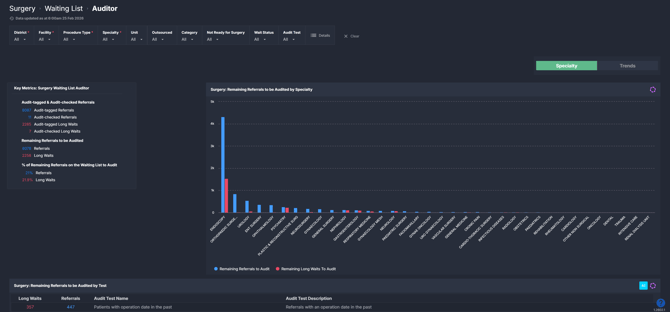
The Surgery Waiting List **Auditor** component automatically flags referrals on the surgical waiting list that meet predefined audit test criteria. It highlights potential data issues, inconsistencies, or policy breaches and allows users to review and assign an audit status to each flagged referral. The component combines summary metrics, visual breakdowns, detailed audit test logic, and workflow tracking tools to support structured review and resolution.
---
### **Why it matters**
##### *Support safe, equitable and compliant waiting list management.*
The Auditor helps teams identify referrals that may require review, ensuring the surgical waiting list remains accurate and aligned with policy and operational standards.
It enables teams to:
- Detect potential duplicate or incorrect referrals
- Identify patients who may no longer be appropriate to remain on the list
- Monitor NRFS compliance and booking integrity
- Track investigation progress and resolution activity
- Strengthen governance and audit readiness
---
### **How to use it**
#### **Filter to focus your view**
Use the filter bar to narrow the audit results:
- **Procedure Type:** Surgical, Non-Surgical, Endoscopy.
- *Surgical* = procedures reportable to the Department of Health.
- *Non-Surgical* = procedures not reportable to the Department of Health.
- *Endoscopy* = reported separately but available for monitoring.
- **Specialty:** View audit results for a specific specialty.
- **Unit:** Refine by surgical unit.
- **Doctor:** Filter by treating doctor.
- **Outsourced:** Identify referrals marked as outsourced.
- **Category:** Filter by urgency category.
- **Not Ready for Surgery:** Include or exclude NRFS patients.
- **Wait Status:** Filter by patients on the waitlist who are booked or unbooked only.
- **Audit Test:** Focus on a specific audit rule.
ℹ️ **Note:** To access the webform for auditing at the bottom of this component, either a **Specialty** or an **Audit Test** must be selected.
#### **Review audit results and take action**
This component combines high-level visibility of audit volume with interactive review tools, allowing teams to both understand the scale of potential issues and actively manage resolution.
It is designed to support two key activities:
1. **Visualising the volume and distribution of audit-tagged referrals**
2. **Reviewing and assigning audit status to individual referrals**
| **Tile name** | **What it shows** |
| --- | --- |
| Key Metrics: Surgery Waiting List Auditor | A consolidated summary of audit activity, including total audit-tagged referrals, audit-checked referrals, long wait counts, remaining referrals to audit, and the percentage of the waiting list still requiring review. This provides an immediate snapshot of audit workload and progress. |
| Surgery: Remaining Referrals to be Audited by Specialty | A visual breakdown of outstanding audit-tagged referrals by specialty, helping teams identify where the largest volumes of review work sit. Long waits are displayed separately to highlight higher-risk cohorts. |
| Surgery: Trends of Audit-tagged & Audit-checked Referrals | A time-series chart showing how many referrals are being flagged and how many are being reviewed over time. This helps assess whether audit activity is keeping pace with newly identified issues. 💡*Note: Use the **Specialty / Trends toggle above the chart** to switch between the specialty workload view and the trends view.* |
| Surgery: Remaining Referrals to be Audited by Test | A table summarising outstanding referrals by audit test type, including a description of each test. This helps users prioritise review based on the nature of the flagged issue. |
| Surgery: Details of Audit-tagged Referrals | The interactive review webform where users can assign an audit status to individual referrals. This is where the actual auditing activity occurs. Changes must be saved to apply updates. |
#### **How to audit referrals**
To audit, check, and review the surgical waiting list, use the **Surgery: Details of Audit-tagged Referrals** table.
This is the main working table where audit activity takes place.
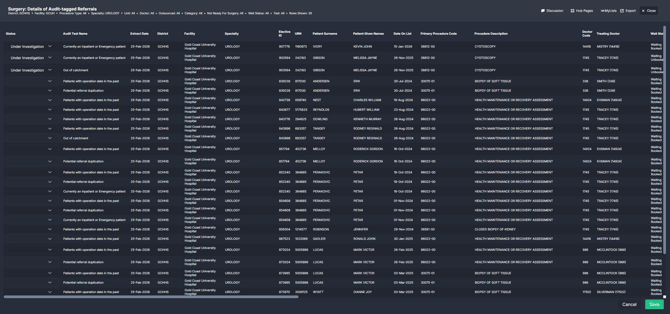
It includes:
- The **Audit Test Name**, so you can see why the referral has been flagged
- Key waiting list details such as specialty, category, wait status and date on list
- Patient and referral identifiers to support validation in the source system
This information allows you to review the referral in context and determine whether the flagged issue requires action.
###### **Assigning a status**
Each audit-tagged referral can be assigned one of three statuses:
1. **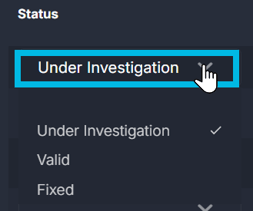Under Investigation:** Select this when you are actively reviewing the referral.
2. **Valid:** Select this when the referral has been reviewed and confirmed as not needed to be corrected (false positive).
3. **Fixed:** Select this once the issue has been corrected in the source system.
When a status is selected and saved:
- The referral is removed from **Remaining Referrals to Audit**
- It is moved to the corresponding status list
- The update becomes visible in tracking and progress views
**💡*****Note:*** To apply the update, click the **Save** button in the bottom right of the webform. If changes are not saved, the referral will remain in the Remaining list.
****
Using this table and the status workflow helps teams:
- Clearly distinguish between new, active, and resolved audit items
- Avoid duplicate review effort
- Maintain visibility of progress across teams and specialties
- Support structured governance and reporting
#### **Track your progress**
The **Track Progress** button provides visibility of recent audit activity and referrals currently being reviewed.
Select **Track Progress** above the webform to open two filtered lists:
1. **Details of Recently Edited Audit-tagged Referrals (Last 7 Days):** Shows referrals that have had their audit status updated in the past seven days.
- - See what has recently been reviewed
- Confirm status updates have been saved
- Monitor audit activity across the team
1. **Details of Audit-tagged Referrals Under Investigation:** Displays referrals currently marked as **Under Investigation**.
- - Track active review workload
- Avoid duplicate effort
- Identify referrals that may require follow-up
Both lists allow further status updates where required.
#### **View referrals by audit status**
The **Details** button provides structured lists of referrals grouped by audit status.
Select **Details** next to the filter bar to open four filtered views:
1. **Details of Remaining Referrals to Audit:** Referrals that have been audit-tagged but have not yet been reviewed or assigned a status.
2. **Details of Audit-tagged Referrals Under Investigation:** Referrals currently being reviewed.
3. **Details of Valid Audit-tagged Referrals (False Positives):** Referrals confirmed as not requiring correction.
4. **Details of Fixed Audit-tagged Referrals:** Referrals where the issue has been corrected in the source system.
These views allow teams to:
- Focus on specific stages of the audit workflow
- Monitor backlog and progress
- Support structured governance reporting
---
### **How it works**
The Auditor runs predefined audit tests against the surgical waiting list dataset.
When a referral meets the criteria of an audit test:
- It becomes **Audit-tagged**
- It appears in summary metrics and detail views
- It requires manual review and status assignment
The component:
- Reflects data from the source system
- Updates following the standard data refresh cycle
- Does not modify or correct source data
Selecting **Fixed** indicates the issue has been resolved in the source system. The referral will disappear from audit lists after the next data refresh if it no longer meets audit criteria.
#### **Audit tests logic**
Audit tests apply rule-based checks to identify potential issues. Below is a summary of each test included in the auditor.
| **Audit Test** | **Logic** |
| --- | --- |
| **Patients with operation date in the past** | Referral has an operation date recorded that has already passed but remains on the waiting list. |
| **Potential referral duplication** | Patient has more than one referral wait listed under the same specialty. |
| **Currently an Inpatient or Emergency patient** | Referral is on the surgical waiting list while the patient is recorded as an inpatient or ED patient at time of extract. |
| **NRFS breach** | Patient marked as Not Ready for Surgery exceeds NRFS standards or review timeframe expectations. |
| **Out of catchment** | Patient’s residential postcode indicates they reside outside the district or facility catchment area. |
| **Deceased** | Patient identified as deceased but remains on the waiting list. |
| **Missing NRFS comment** | Referral marked NRFS without required supporting comment in the source system. |
| **Invalid or incorrect category assignment** | Assigned urgency category does not align with procedure type or business rules. |
| **Booked beyond breach month** | Surgery booking occurs later than the clinically appropriate target month. |
| **Potential outlier estimated length of stay** | Estimated length of stay exceeds defined threshold, indicating possible configuration issue. |
**ℹ️ Note:** These audit tests are intended to flag referrals that could require attention. Always validate details in the source system before making changes.
---
### **How it helps you**
- **Improve data quality:** Identify inconsistencies that may affect reporting and operational planning.
- **Strengthen compliance:** Support adherence to surgical waiting list policies and NRFS standards.
- **Increase transparency:** Clearly track which referrals are under investigation, valid, or fixed.
- **Reduce duplicate effort:** Status tracking prevents multiple users reviewing the same referral.
- **Support executive oversight:** Trend views show audit volume and resolution performance over time.
---
### **Best practices**
#### **How often should I use it**
| **What to do** | **How often** | **Who should do it** | **Why it helps** |
| --- | --- | --- | --- |
| Review new audit-tagged referrals | **Weekly** | Waiting List Coordinators | Prevents backlog of unreviewed flags |
| Monitor long wait audit flags | **Weekly** | Surgical Access Managers | Supports compliance with wait time standards |
| Review referrals flagged as Under Investigation | **Weekly** | Specialty Administration Teams | Ensures timely resolution |
| Review trends | **Monthly** | Surgical Operations Managers | Tracks governance performance over time |
| Confirm Fixed items are resolved in source | **After correction** | Waiting List Team | Ensures data integrity |
#### **Pair with these components**
- **🔗 [Waiting List \> Patient List](https://academy.healthcarelogic.com/knowledge/surgery-waiting-list-patient-list):** Review full waiting list context.
- **🔗 [Chronological Management \> Wait Times](https://academy.healthcarelogic.com/knowledge/surgery-chronological-management-treated-in-turn):** Analyse waiting time distribution and category performance.
- **🔗 [Elective Schedule Monitor](https://academy.healthcarelogic.com/knowledge/surgery-elective-schedule-monitor):** Validate booking alignment with urgency category.
#### **Tips for success**
- Assign status promptly to avoid audit backlogs.
- Use the Audit Test filter to focus on high-risk categories first.
- Monitor the Long Wait counts closely.
- Ensure corrections are made in the source system before marking as Fixed.
- Use the Trends view to demonstrate governance improvement over time.
---
### **❓FAQs / Troubleshooting**
**Q. Does marking a referral as valid or fixed change the source data?**
A. No. Audit status changes in this component do not alter source system records. Data corrections must be completed in the hospital’s patient administration or theatre scheduling system.
**Q. Why does a corrected referral still appear in the list?**
A. If the source system was recently updated, the change will appear in SystemView after the next scheduled data refresh.
**Q. Can I filter by a specific audit rule?**
A. Yes. Use the Audit Test filter to isolate referrals triggered by a particular audit test.
- [Getting Started](https://academy.healthcarelogic.com/knowledge/getting-started#main-content)
- [Welcome & Introduction](https://academy.healthcarelogic.com/knowledge/getting-started#welcome-introduction)
- [Access & Account Setup](https://academy.healthcarelogic.com/knowledge/getting-started#access-account-setup)
- [Basic Navigation & Layout](https://academy.healthcarelogic.com/knowledge/getting-started#basic-navigation-layout)
- [FAQs & Troubleshooting](https://academy.healthcarelogic.com/knowledge/getting-started#faqs-troubleshooting)
- [Interact](https://academy.healthcarelogic.com/knowledge/interact#main-content)
- [Interact Basics](https://academy.healthcarelogic.com/knowledge/interact#interact-basics)
- [Customising SystemView](https://academy.healthcarelogic.com/knowledge/interact#customising-systemview)
- [Sharing & Duplicating Content](https://academy.healthcarelogic.com/knowledge/interact#sharing-duplicating-content)
- [Using Notifications & Improvement Tools](https://academy.healthcarelogic.com/knowledge/interact#using-notifications-improvement-tools)
- [Surgery](https://academy.healthcarelogic.com/knowledge/surgery#main-content)
- [Introduction & Terminology](https://academy.healthcarelogic.com/knowledge/surgery#introduction-terminology)
- [Waiting List Management](https://academy.healthcarelogic.com/knowledge/surgery#waiting-list-management)
- [Scheduling & Booking Management](https://academy.healthcarelogic.com/knowledge/surgery#scheduling-booking-management)
- [Performance & Activity Analysis](https://academy.healthcarelogic.com/knowledge/surgery#performance-activity-analysis)
- [Emergency Surgery](https://academy.healthcarelogic.com/knowledge/surgery#emergency-surgery)
- [FAQs & Troubleshooting](https://academy.healthcarelogic.com/knowledge/surgery#faqs-troubleshooting)
- [Outpatients](https://academy.healthcarelogic.com/knowledge/outpatients#main-content)
- [Introduction & Terminology](https://academy.healthcarelogic.com/knowledge/outpatients#introduction-terminology)
- [Waiting List Management](https://academy.healthcarelogic.com/knowledge/outpatients#waiting-list-management)
- [Referral Management](https://academy.healthcarelogic.com/knowledge/outpatients#referral-management)
- [Wait Times](https://academy.healthcarelogic.com/knowledge/outpatients#wait-times)
- [Demand & Capacity Planning](https://academy.healthcarelogic.com/knowledge/outpatients#demand-capacity-planning)
- [Bookings & Reviews](https://academy.healthcarelogic.com/knowledge/outpatients#bookings-reviews)
- [Clinic Effectiveness & Appointment Outcomes](https://academy.healthcarelogic.com/knowledge/outpatients#clinic-effectiveness-appointment-outcomes)
- [Virtual Learning & Tools](https://academy.healthcarelogic.com/knowledge/outpatients#virtual-learning-tools)
- [Beds](https://academy.healthcarelogic.com/knowledge/beds#main-content)
- [Introduction & Foundations](https://academy.healthcarelogic.com/knowledge/beds#introduction-foundations)
- [Inpatient Demand & Capacity](https://academy.healthcarelogic.com/knowledge/beds#inpatient-demand-capacity)
- [Complex Patients Management](https://academy.healthcarelogic.com/knowledge/beds#complex-patients-management)
- [Risk of Hospitalisation & Readmissions](https://academy.healthcarelogic.com/knowledge/beds#risk-of-hospitalisation-readmissions)
- [Length of Stay & Inpatient Flow](https://academy.healthcarelogic.com/knowledge/beds#length-of-stay-inpatient-flow)
- [Inpatient Occupancy Forecaster](https://academy.healthcarelogic.com/knowledge/beds#inpatient-occupancy-forecaster)
- [Emergency Department](https://academy.healthcarelogic.com/knowledge/emergency-department#main-content)
- [Introduction & Foundations](https://academy.healthcarelogic.com/knowledge/emergency-department#introduction-foundations)
- [Department Now](https://academy.healthcarelogic.com/knowledge/emergency-department#department-now)
- [Flow Monitor](https://academy.healthcarelogic.com/knowledge/emergency-department#flow-monitor)
- [Performance Trends & Analytics](https://academy.healthcarelogic.com/knowledge/emergency-department#performance-trends-analytics)
- [Virtual Learning & Tools](https://academy.healthcarelogic.com/knowledge/emergency-department#virtual-learning-tools)
- [FAQs & Troubleshooting](https://academy.healthcarelogic.com/knowledge/emergency-department#faqs-troubleshooting)
- [SystemView 2](https://academy.healthcarelogic.com/knowledge/systemview-2)
- [System Administration](https://academy.healthcarelogic.com/knowledge/system-administration)
- [Patient Cohorts](https://academy.healthcarelogic.com/knowledge/patient-cohorts#main-content)
- [Beds](https://academy.healthcarelogic.com/knowledge/patient-cohorts#beds)
- [Emergency Department](https://academy.healthcarelogic.com/knowledge/patient-cohorts#emergency-department)
- [Release Notes](https://academy.healthcarelogic.com/knowledge/release-notes)
[](https://healthcarelogic.com/)
[mailto:customersuccess@healthcarelogic.com](mailto:customersuccess@healthcarelogic.com)
© 2026 HealthCare Logic. All rights reserved
**Didn't find what you were looking for?**
[Raise a support ticket](https://academy.healthcarelogic.com/knowledge/kb-tickets/new) and our team will come back to you. For guided training try the [Learning Hub](https://academy.healthcarelogic.com/learning-hub), or catch up on a [past webinar](https://academy.healthcarelogic.com/learning-hub/webinars).