
Location in SystemView: SystemView > Explore > Emergency Department > Department Now > PodView
In this article:
- What it is
- Why it matters
- How to use it
- Monitor pod and triage activity
- How it works
- How it helps you
- Best practices
What it is
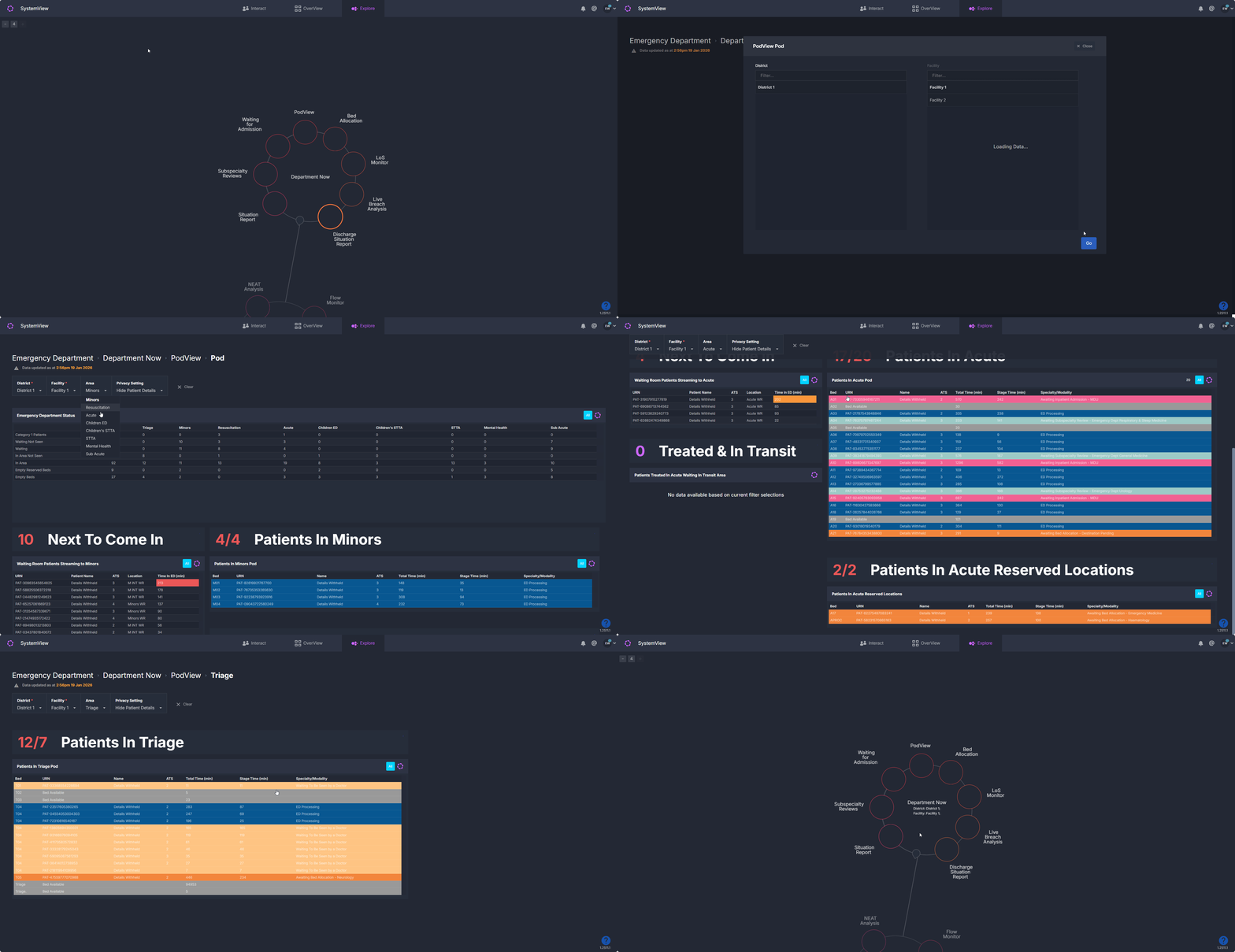
PodView provides near real-time visibility of activity within individual treatment areas (pods) in the Emergency Department. It shows current patient occupancy, demand, and status within each pod, helping teams understand pressure points and flow at a glance.
PodView includes:
-
PodView > Pod, which focuses on a selected treatment area such as Acute or Resus
-
PodView > Triage, which applies the same view specifically to the triage area
Why it matters
See what is happening in each ED area right now.
PodView supports time-critical, shift-level decision-making by making patient flow and capacity visible within each treatment area.
-
Understand how many patients are currently in a pod and their clinical status
-
Identify patients waiting to be seen, processed, or allocated a bed
-
Monitor triage pressure separately from downstream treatment areas
-
Support safe escalation and flow coordination during busy periods
How to use it
Filter to focus your view
You can adjust the view using the filters available in the component:
-
Area: Select the Emergency Department area (pod) you want to focus on, such as Acute, Resuscitation, or Triage. This controls which treatment area is displayed in PodView.
-
Privacy Setting: Toggle between showing all patient details or hiding patient-identifiable information.
Monitor pod and triage activity
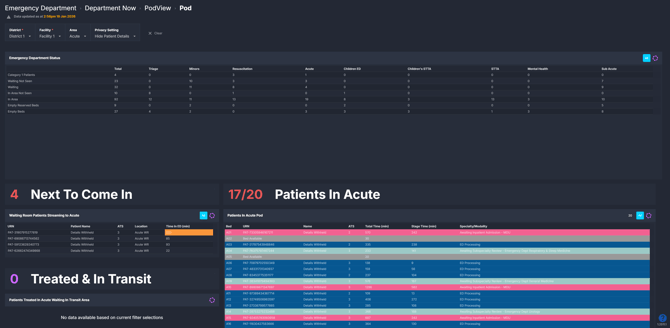
PodView presents tiles and tables that summarise activity and list patients currently within the selected pod or triage area.
PodView > Pod
| Tile name | What it shows |
| Emergency Department Status | A summary of patient counts across ED treatment areas, grouped by categories such as Category 1 patients, waiting, in area, and empty beds. |
| Waiting Room Patients Streaming to Pod | The number of patients waiting to enter the selected pod, alongside a table showing patient triage category, location, and time in ED. |
| Patients in Pod | The number of patients currently occupying spaces within the selected pod, with a detailed patient list including triage category, total time in ED, time in current stage, and current specialty or modality status. |
| Patients Treated in Pod Waiting in Transit Area | Patients who have been seen in the pod and are waiting in a transit or holding area, with time in ED highlighted in red when the target movement time is exceeded. |
| Patients in Pod Reserved Locations | Patients occupying reserved or special-purpose spaces within the pod, displayed using the same patient list structure and colour logic. |
PodView > Triage
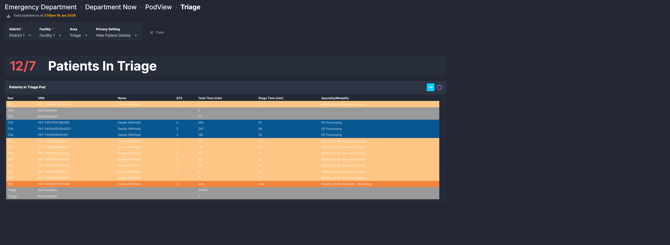
PodView > Triage is a focused application of PodView that displays only the triage area.
| Tile name | What it shows |
| Patients in Triage | A summary count of patients currently in the triage area. |
| Patients in Triage Pod | A patient list showing all patients waiting or present in triage, including ATS, total time, stage time, and current status. |
Bed and patient status colours
 Across both PodView > Pod and PodView > Triage, beds and patient rows are colour-coded to reflect the patient’s current status.


How it works
PodView draws near real-time data from the Emergency Department source systems and updates regularly to reflect current patient location, status, and time-based measures.
Patient lists display:
-
Total Time (min): total time spent in ED
-
Stage Time (min): time spent in the current stage or status
How it helps you
-
Real-time situational awareness: See current pod and triage pressure without manual counts or walkthroughs
-
Early risk identification: Identify patients waiting to be seen or delayed at key stages
-
Flow coordination: Support timely streaming, treatment, and escalation decisions
-
Focused triage oversight: Use PodView > Triage to monitor front-door pressure independently
Best practices
How often should I use it
| What to do | How often | Who should do it | Why it helps |
| Monitor pod occupancy and patient status | Continuously during shift | Nurse in Charge, ED Consultants, Flow Coordinators | Supports safe, responsive shift management |
| Review triage pressure | During peaks and escalation |
Triage leads, ED Nursing Team Leaders | Identifies front-door delays early |
| Check patients waiting to be seen | Regularly | ED clinical and flow teams | Reduces risk of prolonged unseen waits |
| Use colour status to prioritise action | As needed | Operational ED staff | Focuses attention on patients at risk of delay |
Pair with these components and features
- 🔗 Department Now > Waiting for Admission: Focuses on patients who have a decision to admit and are waiting to leave the Emergency Department, helping teams understand admission-related delays.
- 🔗 Department Now > Bed Allocation: Shows patients awaiting inpatient bed allocation, supporting coordination with bed management teams and highlighting downstream capacity constraints.
- 🔗 Flow Monitor > Live Patient Flow: Supports whole-of-hospital context for inpatient capacity
- 🔗 Department Now > Situation Report: Provides a whole-of-department snapshot to support escalation decisions and contextualise pod-level pressure.
Tips for success
-
Use PodView > Pod for overall treatment area management, and PodView > Triage when front-door pressure needs focused attention
- Check Total Time and Stage Time for each patient to understand how long they have been in the current area and how long they have been waiting for the next stage of their ED journey.
-
Rely on colour coding to quickly identify patients awaiting action
-
Combine PodView with Situation Report › during escalation periods for context
Want a detailed breakdown?
If you’d like a more detailed look at every filter, chart, and tile in this component, you can download the PodView Guide below.
📎 Download: Emergency Department > Department Now > PodView Guide