
Location in SystemView: SystemView > Explore > Emergency Department > Department Now > Bed Allocation
In this article:
What it is
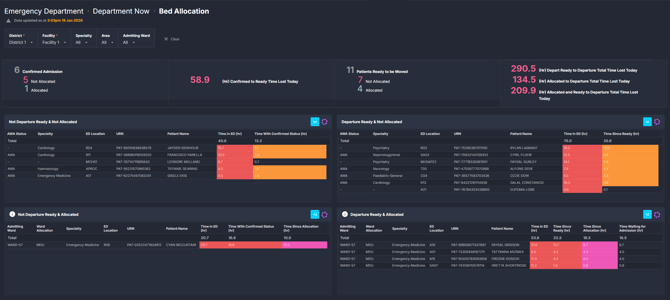
The Bed Allocation component provides an analysis of patients currently in the Emergency Department who are waiting for inpatient admission. Patients are grouped by their ward allocation status and whether they are departure ready, supporting visibility of admission delays and boarding pressure.
This component combines summary metrics with detailed patient lists to help teams understand where delays are occurring between bed request, ward allocation, and departure readiness.
Why it matters
Improve visibility of ED admission delays and inpatient transfer pressure.
This component supports timely escalation and coordination between the Emergency Department and inpatient teams by showing how long patients have been waiting at key admission milestones.
-
Highlights patients waiting for ward allocation versus those ready to depart
-
Shows cumulative time lost between bed request, allocation, and departure readiness
-
Supports real-time flow discussions with Bed Management and Patient Flow teams
-
Improves visibility of ED boarding pressure during busy periods
How to use it
Filter to focus your view
Use the filters to narrow the component to the cohorts most relevant to your role:
-
Specialty: Select one or more admitting specialties. This reflects the specialty of the requested admitting ward.
-
Area: Filter to specific ED areas such as Triage, Acute, or Minors.
-
Admitting Ward: Select one or more admitting wards to analyse patients waiting for those wards.
Monitor bed allocation and departure readiness
| Tile name | What it shows |
| Confirmed Admission | Summary of patients with an active bed request who are not yet marked as departure ready. This includes counts split by Not Allocated (no ward allocated) and Allocated (ward allocated). Also shows the cumulative time lost today between initial bed request and departure ready status. |
| Patients Ready to be Moved | Summary of patients with an active bed request who are marked as departure ready. Counts are split by Not Allocated and Allocated. Also displays cumulative time lost today between key milestones: depart ready to departure, allocated to departure, and allocated and ready to departure. |
| Not Departure Ready & Not Allocated | List of patients waiting for admission who are neither departure ready nor allocated to a ward. Includes patient demographics, admitting specialty, ED location, time in ED, and time since confirmed admission. |
| Departure Ready & Not Allocated | List of patients who are departure ready but do not yet have a ward allocated. Includes patient demographics, admitting specialty, ED location, time in ED, and time since departure ready. |
| Not Departure Ready & Allocated | List of patients who have a ward allocation but are not yet departure ready. Includes admitting ward, ward allocation, specialty, ED location, time in ED, and time since allocation. |
| Departure Ready & Allocated | What treatment spaces are free, by area, across the day (every 30 minutes) - so you can place patients quickly and safely. |
💡Tip: Add key tiles to a MyHub dashboard
Use the Activate › button on summary tiles and patient lists to add them to a MyHub › dashboard. This allows Bed Allocation metrics to be viewed alongside other ED or hospital flow indicators, supporting shared situational awareness during shifts and escalation discussions.
How to interpret colour indicators in patient lists
The patient lists use colour highlighting to draw attention to patients who have exceeded locally defined time thresholds at key stages of the admission process. These colours are intended as visual flags only and do not represent clinical risk or prioritisation.
 Red
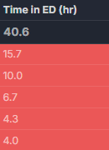
Red
Highlights patients who have spent longer than expected at a key stage of their ED journey, such as:
-
Time in ED
-
Time since departure ready
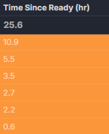 Orange
Indicates patients who are considered unseen for the current stage of the admission process.
This typically reflects patients who have been waiting longer than the expected timeframe before progressing to the next step (for example, waiting for ward allocation after confirmation).
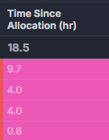
Pink
Indicates patients who are considered not moved.
This reflects patients who have had a ward allocated but have not yet physically transferred from the Emergency Department within the expected timeframe.
ℹ️ Note: The thresholds used to trigger these colour indicators are locally configured and may vary by organisation. SystemView displays these flags to support situational awareness and flow discussions, rather than to define escalation actions.
How it works
The Bed Allocation component draws on Emergency Department admission and bed request data to show the current state of patients awaiting inpatient transfer. It updates near real-time to reflect changes in bed requests, ward allocation, and departure readiness status.
Time-based metrics accumulate throughout the day to show how long patients have been waiting at each stage of the admission process to support shift-level awareness.
How it helps you
-
Identify boarding pressure early: See which patients are waiting longest for allocation or transfer
-
Support escalation conversations: Use shared, real-time data when engaging Bed Management and Patient Flow teams
-
Prioritise action: Distinguish between delays caused by allocation versus readiness to depart
-
Improve situational awareness: Maintain a live view of admission queues during high-demand periods
Best practices
How often should I use it
| What to do | How often | Who should do it | Why it helps |
| Review summary tiles at shift start | Each shift | ED Nurse in Charge, Flow Coordinator | Establishes early awareness of boarding pressure |
| Monitor departure ready but not allocated patients | Throughout shift | Flow Coordinator, Bed Manager | Supports timely ward allocation and escalation |
| Use patient lists during escalation discussions | As needed |
ED leadership, Patient Flow teams | Enables shared understanding of delays |
| Track cumulative time lost metrics | Daily | ED and hospital operational leads | Highlights recurring admission bottlenecks |
Pair with these components and features
- 🔗 Department Now > Waiting for Admission: Provides complementary visibility of admitted patients still in ED
- 🔗 Beds > Inpatient Flow Monitor: Supports whole-of-hospital context for inpatient capacity
- 🔗 Department Now > Situation Report: Adds broader ED demand and pressure indicators
Tips for success
-
Use filters to focus on the wards or specialties driving the most delay
-
Review both allocation and departure readiness together to avoid misinterpreting bottlenecks
-
Be aware that local workflows may influence how quickly statuses are updated in source systems
Want a detailed breakdown?
If you’d like a more detailed look at every filter, chart, and tile in this component, you can download the Bed Allocation Guide below.
📎 Download: Emergency Department > Department Now > Bed Allocation Guide