
Location in SystemView: SystemView > Explore > Emergency Department > Flow Monitor > Recent Patient Flow
In this article:
What it is
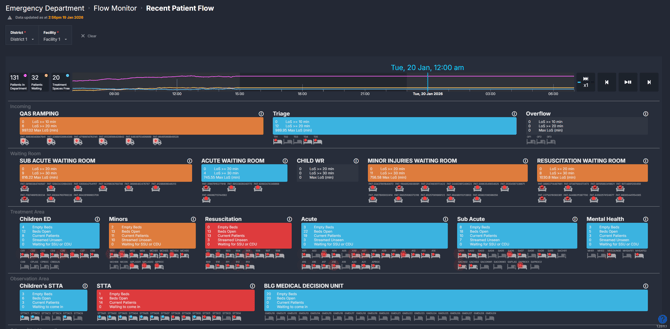
The Recent Patient Flow component provides a replayable visualisation of patient movement and occupancy across the Emergency Department for the previous ED operational day, running from 7am on the previous day through to 7am today.
It uses the same map-based layout as Live Patient Flow ›, allowing users to step back through recent activity and review how flow, congestion, and escalation developed over time.
This component is designed to support short-term retrospective review, such as understanding what happened on the last shift or overnight.
Why it matters
Review recent ED activity with full visual context.
Recent Patient Flow helps teams understand how patient flow has evolved over the last day, supporting reflection, review, and learning.
It enables users to:
-
Review how the department functioned during previous shifts or overnight periods
-
Identify when and where congestion or access block emerged
-
Replay patient movement to understand the sequence of events leading to escalation
-
Support structured handover, debriefs, and short-term operational review
How to use it
Navigating the map
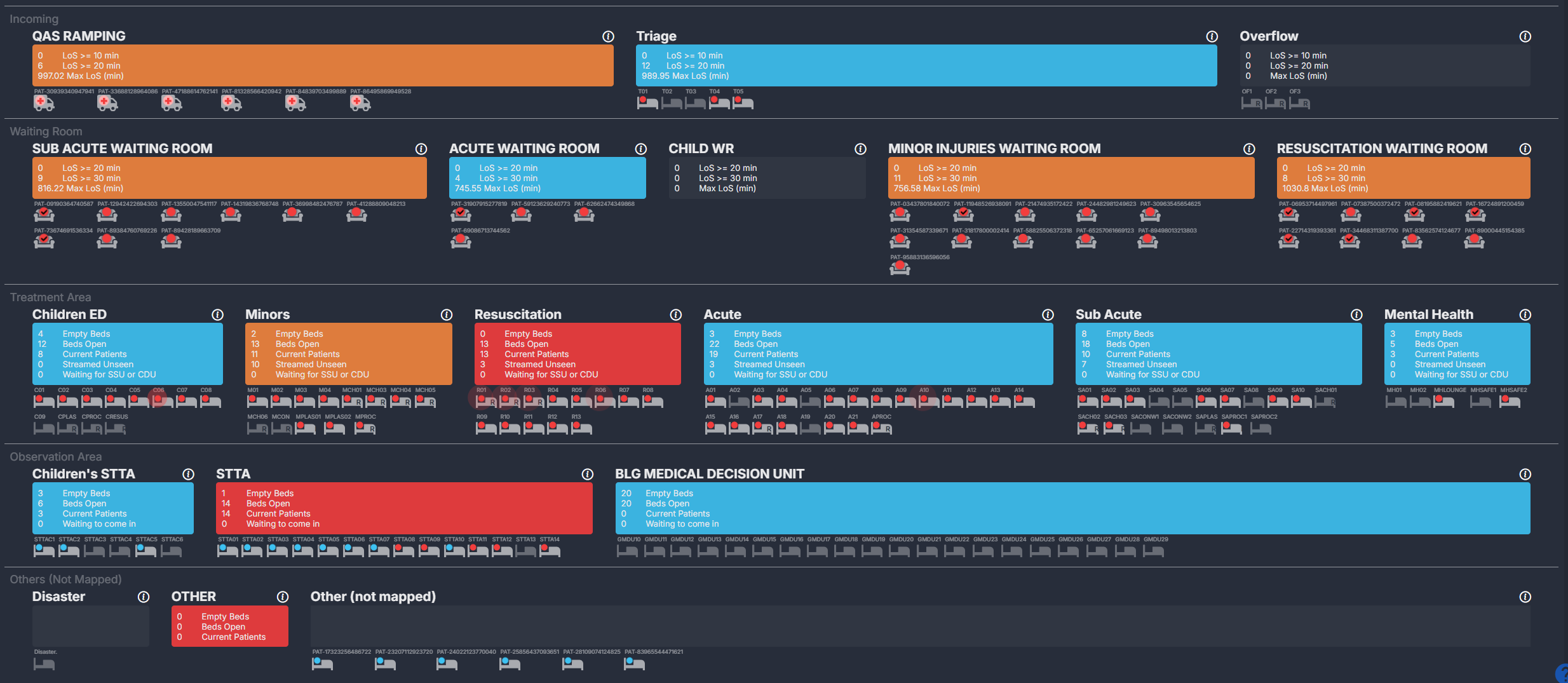
The Recent Patient Flow map presents the ED as a bird’s-eye layout, segmented into zones such as:
- Ramping
- Waiting areas
- Treatment spaces
- Short Stay / Inpatient zones
Each patient and area is colour coded based on the same escalation rules used in the Live Patient Flow › component.
Area colours – occupancy and demand
| Colour | Meaning | How to interpret |
| Blue | Low activity | Patient numbers and bed usage are well within capacity. |
| Orange | Moderate activity | The area is becoming busier - monitor for early signs of congestion. |
| Red | High demand | The area is nearing or at full capacity and may require escalation or redistribution of patients. |
Patient colours – total length of stay (LoS)
| Colour | Length of Stay | What it signals |
| Blue | < 3 hours | Patient was within the target LoS timeframe. |
| Orange | 3 - 4 hours | Patient approaching 4-hour LoS KPI. |
| Red | > 4 hours | Patient breached 4-hour LoS KPI. |
| Flashing Red | > 8 hours | Stranded patient, a high clinical risk requiring escalation. |
ℹ️ Note: These colours apply to patients who have already been seen and are in treatment or observation areas.
Patients who are waiting to be seen are instead colour coded by their triage category based on the time since arrival and their target review timeframe.
A tick on a patient dot in the waiting areas indicates that the patient has been seen.
Exploring patient and area details
Clicking on any zone within the map, such as Waiting, Acute, or Short Stay, opens a detailed view for that area.
Here you can review all patient-level information for the timepoint, including:
- Incoming patients for the area
- Patients who occupied that area during the selected timepoint
- Patients waiting for subspecialty review
- Patients waiting for admission
These tables mirror those in Live Patient Flow › and can also be exported for further analysis.
Navigating the timeline
When you open the component, it loads a 24-hour timeline from 7am on the previous day through to 7am today.
The timeline shows how key summary metrics have trended across that period.

You can:
-
Click anywhere on the timeline to jump to a specific point in time
-
Click and drag across the timeline to scrub through patient flow movements
-
Use the shaded background on the timeline to distinguish:
-
Morning shift (7am to 3pm)
-
Afternoon shift (3pm to 11pm)
-
Night shift (11pm to 7am)
-
As you move through time, the map updates to reflect exactly how the department looked at that moment.
Playback controls
Use the playback controls to step through or replay all patient and area movements throughout that 24-hour period.
| Control | Function |
| ▶️ Play / Pause | Starts or stops the playback of patient and area movements. |
| ⏪ Rewind 10 mins | Steps the playback back by 10 minutes |
| ⏩ Fast forward 10 mins | Jumps the playback forward by 10 minutes. |
| ⏭️ Playback speed | Toggles playback speed (1x, 2x, 5x, 10x). |
| ⏱️ Timeline scrub | Click or drag along the timeline to move directly to any point in the day. |
As playback runs, you will see the map update dynamically with patients arriving, being seen, moving between areas, and discharged, along with occupancy and escalation changes in each area.
Top summary bar
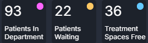
At the top of the component, key statistics for the selected timepoint are displayed and update as playback progresses:
- Total patients in the department
- Patients waiting
- Treatment spaces free
These metrics track how activity changed over the course of the selected day.
How it works
Recent Patient Flow uses historical ED location and movement data captured during routine SystemView updates.
The component reconstructs the department state for each point in time across the previous 24 hours and displays it using the same layout, colouring, and escalation rules as Live Patient Flow › to visualise clinical and operational risk.
Patient-level logic
SystemView evaluates each patient’s length of stay and triage timing to highlight time-based risks:
- Length of stay (LoS): Patients transition from blue to orange to red and flashing red as they exceed 3-, 4-, and 8-hour thresholds.
- Triage category: Patients in waiting areas are colour coded by their triage target time. As they approach or exceed their category-specific time-to-review KPI, their colour transitions from blue to orange to red, signalling that clinical review is due or overdue.
Area-level logic
Each ED zone is assessed against defined occupancy and activity thresholds:
- Waiting areas: Escalate as total waiting patients increase.
- Acute and Resuscitation areas: Escalate based on bed availability, occupancy percentage, and the number of concurrent resuscitations.
- Colour progression: Blue → Orange → Red to indicate rising pressure.
This consistent logic allows for accurate comparisons between historical and live conditions, helping teams understand what was occurring in the department at any moment.
How it helps you
-
Shift review: Understand how patient flow evolved during the previous shift or overnight
-
Handover support: Provide clear visual context during morning or inter-shift handovers
-
Incident review: Step back through recent events to understand timing and contributing factors
-
Pattern recognition: Identify recurring congestion points or pressure windows
-
Shared understanding: Align clinical, nursing, and flow teams using a consistent visual replay
Best practices
When to use it
| What to Do | How Often | Who Should Do It | Why It Helps |
|---|---|---|---|
| Review overnight activity | Daily | Nurse in Charge, Flow Coordinator | See the real flow and demand at the time of incidents. |
| Analysing performance on a busy day | As needed | ED Nursing and Medical Leadership | Understand contributing factors to 4-hour target breaches. |
| Shift handover review | After escalation events | ED Leadership Teams | Replay the previous shift for shared situational awareness. |
Pair with these components
-
🔗 Flow Monitor > Live Patient Flow: Monitor the current state alongside historical trends.
-
🔗 Flow Monitor > Historical Patient Flow: Extend analysis beyond 24 hours for deeper investigation
-
🔗 NEAT / ELOS / PET Analysis: Connect visual flow patterns with access performance metrics
Tips for success
-
Use higher playback speeds to scan the day, then slow down around key pressure points
-
Focus on transitions between areas to understand where flow slowed or stalled
-
Combine Recent Patient Flow with shift context from staff on duty for richer interpretation
Want a detailed breakdown?
If you’d like a more detailed look at every filter, chart, and tile in this component, you can download the Recent Patient Flow Guide below.
📎 Download: Emergency Department > Flow Monitor > Recent Patient Flow Guide